Manage Users & Groups
Use Manage Users to see who is in your organisation and set their roles. Use Groups to divide your agents between teams.
Who can use it: Tenant Admin only. Both items are near the bottom of the console menu.
Manage Users
Where to find it: Console menu, Manage Users.
The page lists everyone who has signed in to your organisation.
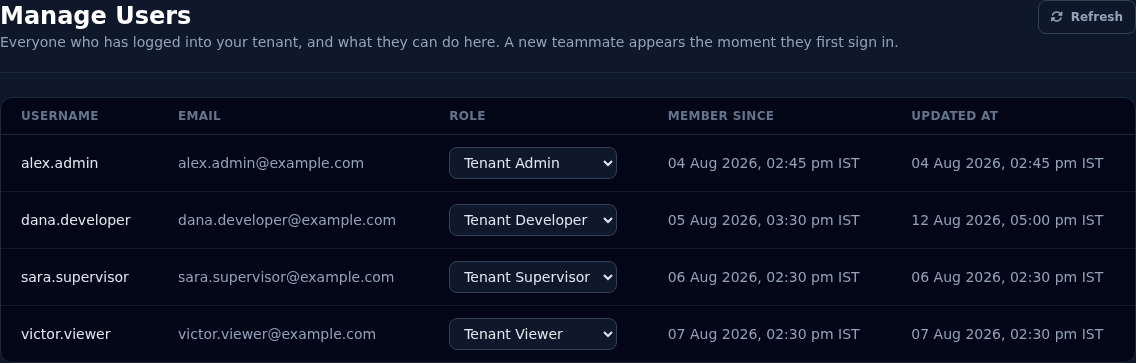
| Column | What it shows |
|---|---|
| Username | The person's sign-in name. |
| The person's email address. | |
| Role | Their role. You change it here. |
| Member Since | When they first signed in. |
| Updated At | When their role was last changed. |
Select Refresh to see people who signed in after you opened the page.
How a new person appears
A person appears in the list the first time they sign in, with the Tenant Viewer role. Change their role right away if they need more access.
Vyom does not add or remove people from this page. Letting someone sign in, or stopping someone from signing in, is done in your organisation's sign-in account settings. If you need help with that, contact support.
Resend an activation email
A new person activates their account from the link in their activation email. The link works for 72 hours. Until they use it, their status shows Pending Activation.
If the link has expired or the email was lost, select the paper plane on their row and confirm. They get a new email, and the link in any earlier email stops working.
Change someone's role
- Find the person in the list.
- Open the Role menu on their row and choose the new role.
- The change saves straight away, and Updated At shows the new time.
The new role applies the next time that person signs in. See Role Based Access Control for what each role can do.
Keep more than one Tenant Admin
Vyom will not let you lower the last remaining Tenant Admin. Before a Tenant Admin leaves your company, give another person the Tenant Admin role.
Groups
Where to find it: Console menu, Groups.
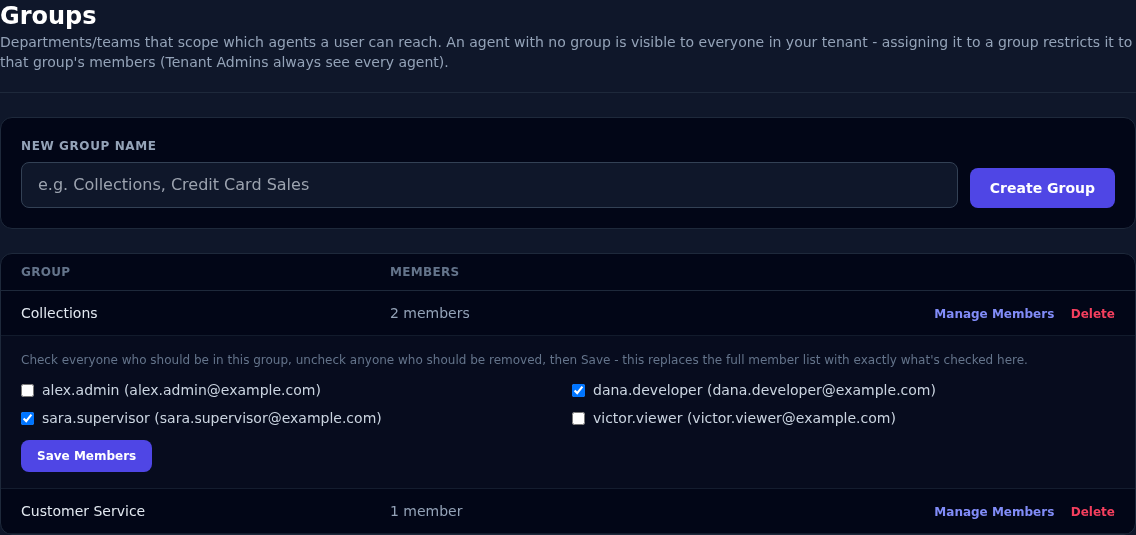
Groups are departments or teams, for example Collections or Customer Service. They decide which agents a person can open and edit.
How groups work
- An agent is in one group, or in none.
- An agent with no group can be opened by everyone in your organisation.
- A person can be in several groups.
- Tenant Admins can open every agent.
Create a group
- Select Groups in the menu.
- Type a name under New Group Name, for example
Collections. - Select Create Group.
Choose who is in a group
- Find the group and select Manage Members.
- Tick everyone who should be in the group. Untick anyone who should be removed.
- Select Save Members.
Saving replaces the whole member list with exactly what is ticked.
Put an agent in a group
- Open the agent in the Agent Builder.
- On the General tab, choose a group in the Group field. Choose Unassigned (visible tenant-wide) to remove it from a group.

The Group field is shown to Tenant Admins only.
Delete a group
Select Delete on the group's row and confirm. Agents in the group are not deleted. They go back to having no group, so everyone in your organisation can open them again.
What groups limit today
- A person who is not in an agent's group cannot open or edit that agent. They see the message "This agent is not in a group you have access to."
- Groups do not hide an agent from the Agents list, and they do not filter Agent Call History or live calls.
If something goes wrong
| What you see | What it means and what to do |
|---|---|
| A new colleague is not in the list | They have not signed in yet. They appear after their first sign-in. Select Refresh. |
| "Cannot change this tenant's last remaining tenant_admin to a lower role." | Give another person the Tenant Admin role first, then change this one. |
| Someone's new role has no effect | They need to sign out and sign in again. |
| Someone cannot open an agent | The agent is in a group they are not in. Add them in Groups, or move the agent to Unassigned. |
| The Group field is missing in the Agent Builder | Only Tenant Admins see it. |