Phone Numbers
Register the numbers you have already bought from your provider. Then choose which agent takes calls to each one, and which agent calls out from it.
Where to find it: Console menu, Telephony, Phone Numbers.
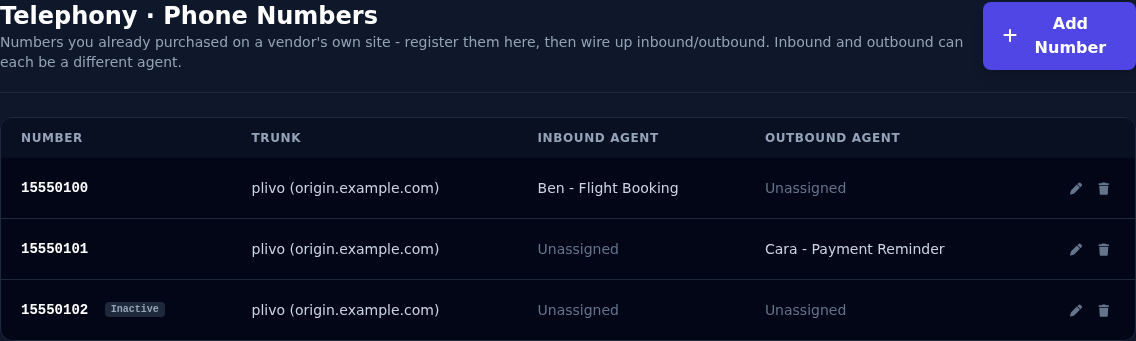
| Column | What it shows |
|---|---|
| Number | The number. An Inactive badge appears if you switched it off. |
| Trunk | The provider and address it belongs to. |
| Inbound Agent | The agent that answers calls to this number. Set it in the number's edit window (below); it's saved as the number's dispatch rule. |
| Outbound Agent | The agent whose outbound calls show this number as the caller ID. |
Add a number
- Add a SIP trunk first.
- Select Add Number.
- Choose the Trunk.
- Enter the Phone Number.
- Select Add Number.
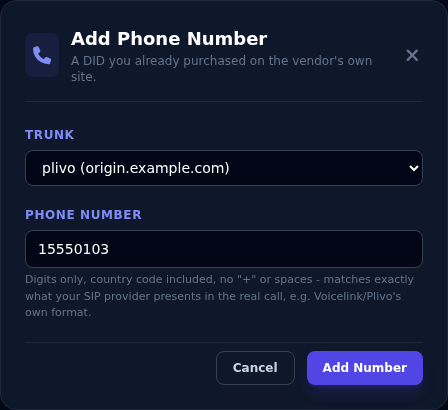
Write the number exactly as your provider sends it: digits only, with the country code, and no + or spaces, for example 15550100. If you write it differently, calls will not match.
The first number you add to a trunk finishes the trunk's registration.
Choose the agents
Inbound and outbound can be different agents on the same number.
- Select the pencil on the number's row.
- Under Inbound Agent, choose the agent that answers calls to this number. This creates or updates the number's dispatch rule, so it shows there too. Choosing Unassigned removes the rule after you confirm; calls to the number are then no longer answered.
- Under Outbound Agent, choose the agent that calls out from it. That agent's outbound calls will show this number as the caller ID.
- Choose the Status. An Inactive number stays registered but is not used for outbound calls.
- Select Save.
If your provider replaces your number, enter the new one under Phone Number in the same window, digits only with the country code, and select Save. The trunk, agents and dispatch rule stay as they are. Make sure your provider now sends calls for the new number to Vyom. A Vyom number can't be changed this way: release it and get a new one.
The trunk itself cannot be changed. To use another trunk, delete the number and add it again.
Delete a number
The bin deletes the number, after you confirm. Its dispatch rule, if it has one, is deleted too, so callers can no longer reach it.
If something goes wrong
| What you see | What it means and what to do |
|---|---|
| "Add a SIP Trunk first." | Add a trunk before adding a number. |
| "Enter the phone number (DID)." | The number box is empty. |
| Calls to the number are not answered | The number needs an Inbound Agent (its dispatch rule). Set one with the pencil. Check the number's format too. |
| Outbound calls show the wrong number | Check which number has your agent as its Outbound Agent, and that it is Active. |