Creating Knowledge Bases
A knowledge base is a collection of your documents that your agents can search during a call. Put your price list, your baggage policy or your FAQ in one, and the agent answers from it instead of guessing.
Where to find it: Console menu, Knowledge Bases.
There are three steps: create a knowledge base, upload documents to it, and then attach those documents to an agent.
Anyone who can open this page can change it
Today every role can create and delete knowledge bases and upload documents. Ask your Tenant Admin to keep this in mind when giving out roles. See Role Based Access Control.
Prepare your documents
The agent can only use what is written in the documents, so the quality of your answers depends on them.
File types you can upload
| Type | Notes |
|---|---|
| The PDF must contain real text that you can select and copy. A scanned page that is only a picture cannot be read. | |
| TXT | Plain text. |
| CSV | A table. The first row must be the column names. Each row becomes a separate entry that keeps its column names, so the agent can find a single row. |
| HTML | A saved web page. Vyom removes the code and keeps the words. |
Word, Excel and PowerPoint files, images and web links are not supported. Save Word documents as PDF first.
Tips for good answers
- One topic in each section. Use clear headings such as "Cabin baggage" and "Refund rules".
- Write the way customers ask. If callers say "hand luggage", use those words.
- Put facts in words. State numbers with their unit, for example "7 kg". The agent is told to repeat numbers exactly as they appear, and never to guess.
- Use a CSV for tables such as fares or opening hours. Tables inside a PDF can lose their layout.
- Remove old versions. If two documents disagree, the agent may use the wrong one.
- Keep files reasonable in size. Split very large documents by topic.
Create a knowledge base
- Open Knowledge Bases.
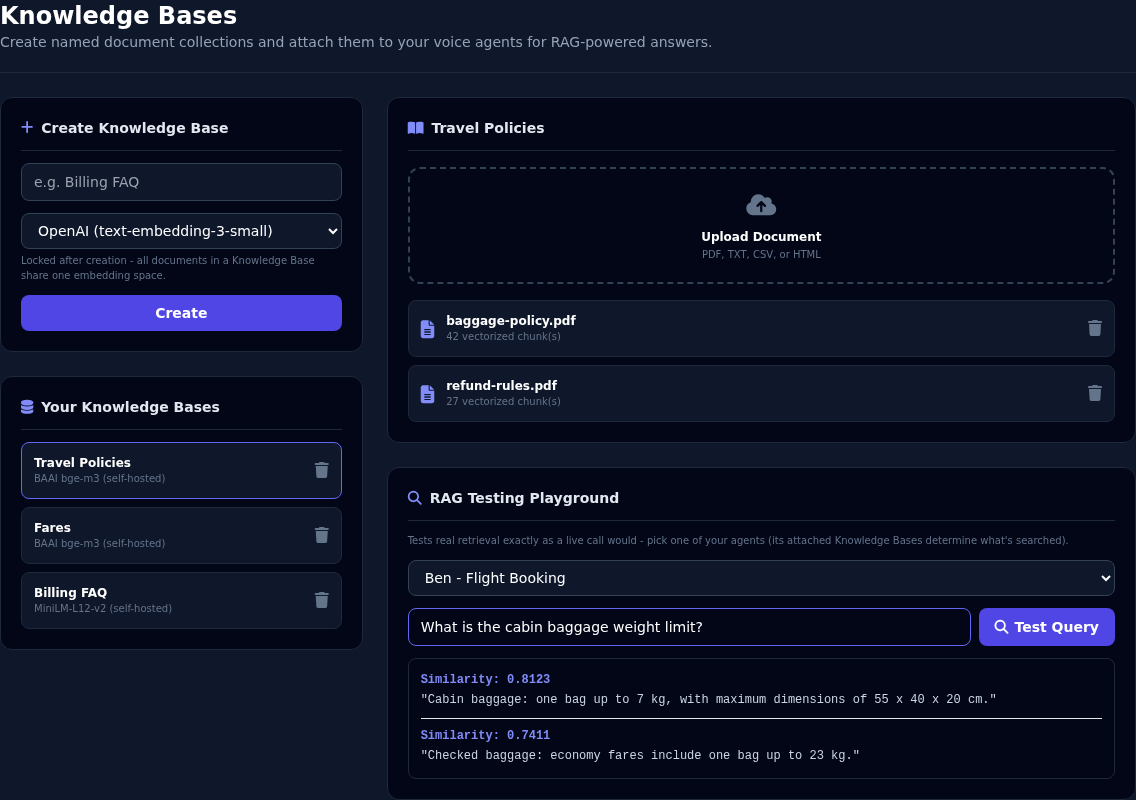
- Under Create Knowledge Base, enter a name, for example
Travel Policies. - Choose the embedding model. See below.
- Select Create.
The new knowledge base appears under Your Knowledge Bases.
The embedding model
The embedding model is the tool that turns your text into numbers so it can be searched by meaning, not just by exact words. You choose it once for each knowledge base.
| Choice | Notes |
|---|---|
| BAAI bge-m3 (self-hosted, no API key) | Runs inside Vyom. No key and no extra cost. Understands many languages. A good first choice. |
| MiniLM-L12-v2 (self-hosted, faster/lighter) | Also runs inside Vyom, and answers a little faster. Also understands many languages. |
| OpenAI (text-embedding-3-small) | Uses OpenAI. This option needs a platform-level key that is not enabled at the moment. Uploads to it fail. |
The choice is locked
You cannot change the embedding model after you create the knowledge base, because all its documents must share the same model. To use another model, create a new knowledge base and upload the documents again.
Upload documents
- Select the knowledge base in the list.
- Select Upload Document, and choose a file.
- Wait for the message Uploaded … - N chunk(s) indexed.
The document appears in the list with its number of vectorized chunks. Vyom splits each document into small pieces of about 80 words, so the agent can find the right piece. A longer document has more chunks.
Uploading several documents: repeat the steps for each one.
To change a document, delete it and upload the new version. There is no edit.
Test what the agent will find
Use the RAG Testing Playground on the same page to try questions before a customer does.
- Choose an agent. The test searches only the documents attached to that agent, exactly as a live call would. See Attaching Knowledge.
- Type a question, as a caller would ask it.
- Select Test Query.
You see up to three matching pieces of text, each with a similarity score. A higher score means a closer match. Check that the piece with the answer comes first.
| What you see | What it means |
|---|---|
| The right text, with a high score | The agent will find it. |
| The wrong text first | Reword the document so the answer is clearer, or split a section that mixes topics. |
| "No matching results" | The agent has no documents attached, or nothing matched closely. |
Attach the documents to an agent
Uploading is not enough. An agent only searches the documents you attach to it. Open the agent, go to the Knowledgebase tab, and choose the documents. See Attaching Knowledge.
All the documents attached to one agent must come from knowledge bases that use the same embedding model.
Delete documents and knowledge bases
- The bin beside a document deletes that document, after you confirm.
- The bin beside a knowledge base deletes the knowledge base and every document in it. This cannot be undone. Agents that used those documents can no longer find them.
Your documents are kept for your organisation only. No other organisation can see them.
If something goes wrong
| What you see | What it means and what to do |
|---|---|
| "Enter a name for the Knowledge Base." | Enter a name before you select Create. |
| "Unsupported file type for '…'" | Only PDF, TXT, CSV and HTML files can be uploaded. Convert the file. |
| The upload finishes with 0 chunks | The file has no readable text. A scanned PDF is the usual cause. Use a PDF with real text. |
| "Upload failed" with an embedding message | The knowledge base uses the OpenAI model, which is not enabled. Create a new knowledge base with bge-m3 or MiniLM. |
| The agent does not use the documents | They are not attached to the agent. Attach them on its Knowledgebase tab. |
| The agent gives an old answer | An old version is still uploaded. Delete it. |
| The agent says it does not know | The answer is not in the documents, or is worded very differently. Test it in the playground, then improve the document. |