AI Models
The AI Models tab decides how your agent listens, thinks and speaks. You choose the models, the voice, and your own API keys. You also set how the agent handles interruptions.
Where to find it: Agent Builder, AI Models tab.
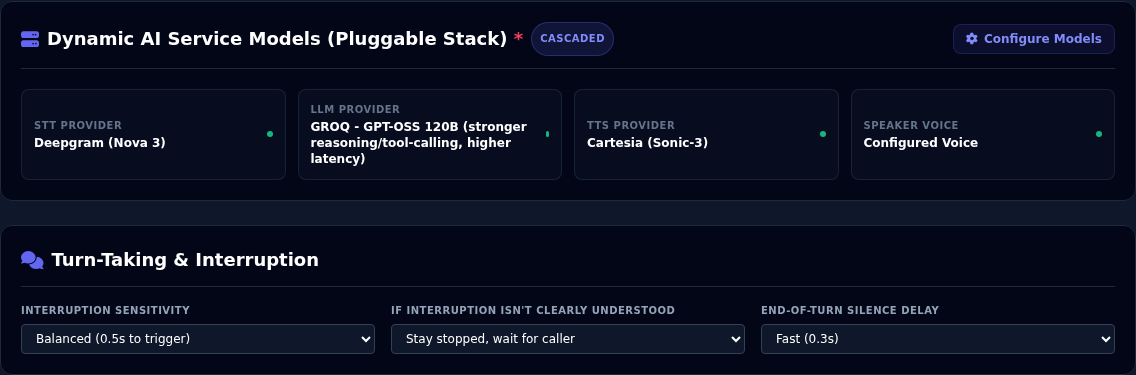
The cards at the top show what this agent uses now. Select Configure Models to change it.
An agent cannot be saved without working AI models
Vyom needs a valid API key for every provider the agent uses. If a key is missing you cannot save the agent, and you cannot preview it.
Two ways to build an agent
Choose one at the top of the Configure Models window.
| Cascaded Model | Speech-to-Speech Model | |
|---|---|---|
| How it works | Three separate steps: speech is turned into text (STT), a language model writes the reply (LLM), and a voice reads it out (TTS). | One model listens and speaks directly. |
| You choose | An STT, an LLM and a TTS provider, a voice, and a speech speed. | One model and a voice. |
| Strengths | Many providers to choose from. Fine control of each step. Best for Arabic dialects. | Natural, quick conversation. Follows the caller between languages. |
| Things to know | The same voice is used for every language. | Fewer choices. Uses Gemini Live models today. |
If you are not sure, start with Speech-to-Speech for natural conversation and for agents that use more than one language. Choose Cascaded when you need a specific provider or a specific Arabic dialect. See Agents That Speak Several Languages.
Configure the models
- Select Configure Models.
- Choose Cascaded Model or Speech-to-Speech Model at the top.
- Choose the models (see below).
- Enter an API key for each provider listed under API Keys.
- Choose the voice. Select the play button next to a voice to hear a sample first.
- Select Confirm and Save.
If the agent has a Voice Gender, the list shows only voices of that gender, with the note "Showing female voices only - set by this agent's Voice Gender". Change it on the General Details tab. A few providers don't publish a voice's gender; Vyom then infers it from the voice's name and marks it (likely), so play the sample to be sure. If a provider has no voices of that gender, choose another provider, or change the Voice Gender.
You are then back on the tab. Remember to select Save Agent to keep your choices.
Cascaded
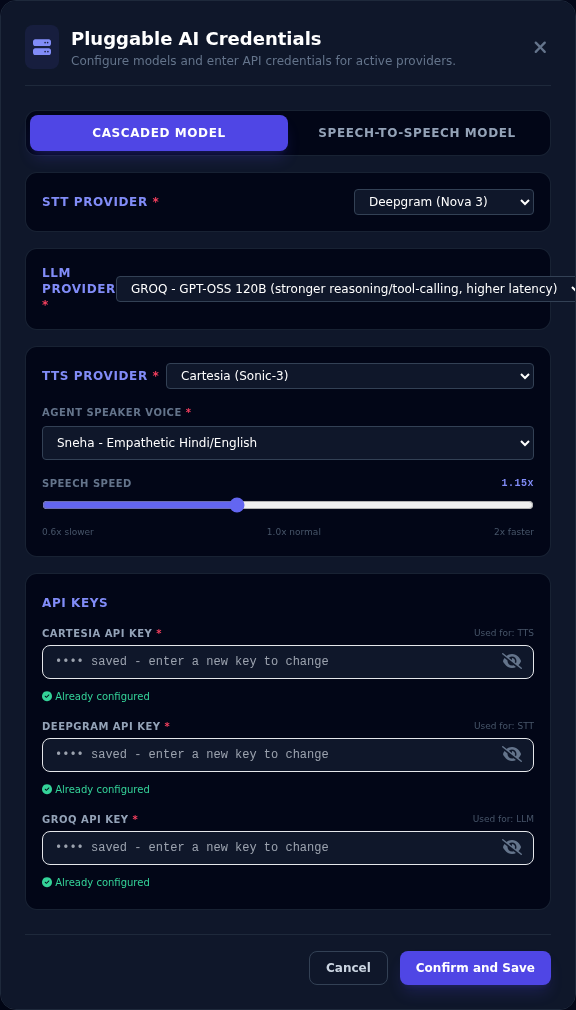
| Setting | What to choose |
|---|---|
| STT Provider | Who turns the caller's speech into text. |
| LLM Provider | Who writes the agent's replies. |
| TTS Provider | Who turns the reply into speech. |
| Agent Speaker Voice | The voice. The list appears after your key is checked. |
| Speech Speed | How fast the voice speaks. The default is 1.15x. The range depends on the provider. |
The providers you can choose today:
| Step | Providers and models |
|---|---|
| STT | Deepgram (Nova 3, Nova 2), ElevenLabs (Scribe v2), Sarvam (Saaras v4, Saaras v3), Munsit (Arabic) |
| LLM | GROQ (GPT-OSS 20B: fastest. GPT-OSS 120B: stronger reasoning and tool use, a little slower), OpenAI (GPT-4o, GPT-4o mini), Gemini (2.5 Flash-Lite, 3.5 Flash-Lite) |
| TTS | Cartesia (Sonic-3), Deepgram (Aura-2), ElevenLabs (Flash v2.5, Eleven v4, Eleven v4 Turbo), Sarvam (Bulbul v4 Flash, v3, v2), Vakyam AI (Raaga v1, Indian languages), Gemini (3.8 Flash TTS, 3.8 Flash-Lite TTS, every agent language), SmallestAI, Munsit (Faseeh, Arabic), Eterna Edge and Eterna Lightning |
The list can grow. What you see in the window is always the current list.
Choosing an LLM
Agents that call tools (booking, lookups) need a model that handles tools well. The larger models are better at this. The smaller models are faster.
Eterna Edge and Eterna Lightning run on Eterna's own systems. No API key is needed. Edge answers faster. Lightning sounds richer but is slower.
Speech-to-Speech
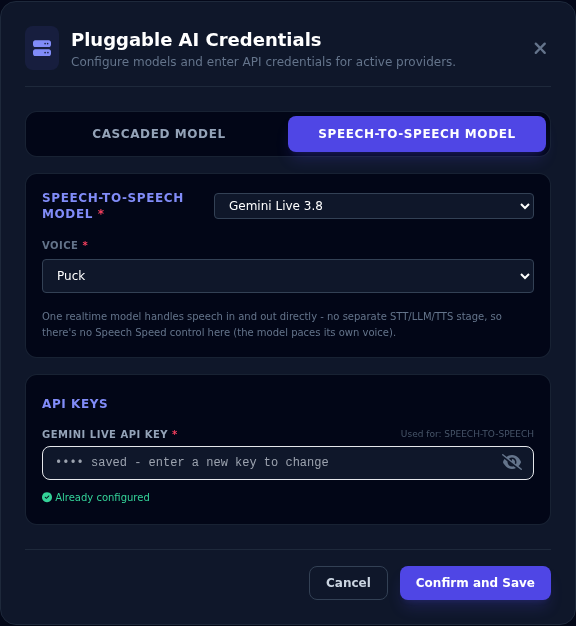
| Setting | What to choose |
|---|---|
| Speech-to-Speech Model | Today: Gemini Live 2.5 Flash, Gemini Live 3.8, or Gemini Live 2.5 Flash Native Audio (Vertex AI). |
| Voice | One of the model's voices, for example Puck, Kore or Zephyr. |
There is no speech-speed control here. The model sets its own pace.
API keys
An API key is a secret code from the AI provider that lets Vyom use your account with them. You get it from the provider's own website.
- Vyom shows one box per provider the agent uses, however many steps that provider covers.
- When you type a key, Vyom checks it with the provider. You see Valid or an error message.
- Keys are kept encrypted and are shared by all agents in your organisation. Enter a key once and every agent that uses that provider can use it.
- A saved key shows Already configured and the dots
••••. Vyom never shows it again. - To change a key, type the new one over the dots.
- Vertex AI needs a service account JSON key, a project ID and a region instead of a single key.
To see the voice list, enter the key again
Vyom does not send a saved key back to your browser. So the voice list is empty until you type the key again. If you only want to keep the same voice, you do not need to. Just leave it as it is.
Because these are your own keys, each AI provider bills your account with them for what your agents use.
Turn-taking and interruption
These settings control how the agent behaves when people talk over each other. They are on the same tab, under the model cards. The options change with the pipeline you chose.
Cascaded agents
| Setting | Choices | What it does |
|---|---|---|
| Interruption Sensitivity | High (0.3 s), Balanced (0.5 s), Low (0.8 s) | How long the caller must speak before the agent stops talking. High stops sooner. Low ignores short sounds like "mm-hm". |
| If Interruption Isn't Clearly Understood | Stay stopped, wait for caller, or Resume original sentence | What the agent does after a noise that turned out not to be real speech. |
| End-of-Turn Silence Delay | Fast (0.3 s), Balanced (0.5 s), Patient (1.0 s) | How long the agent waits in silence before it decides the caller has finished. Patient suits callers who pause to think. |
| End-of-Turn Detection | Standard, Language-aware | How the agent tells that the caller has finished speaking. Language-aware helps the agent reply sooner in Tamil, Russian, Telugu, Kannada and Uzbek. Other languages work the same with either choice. |
Speech-to-Speech agents
| Setting | Choices | What it does |
|---|---|---|
| End-of-Speech Sensitivity | Provider default, High, Low | High decides the caller is finished sooner. Low waits through longer pauses. |
| Silence Duration Before End-of-Turn | Provider default, Fast (300 ms), Balanced (500 ms), Patient (1000 ms) | How much silence ends the caller's turn. |
Provider default leaves the model's own behaviour as it is. Change these only if a test call shows a problem, such as the agent cutting in too early.
If something goes wrong
| What you see | What it means and what to do |
|---|---|
| "Missing a validated API key for: …" | Open Configure Models and enter a working key for the provider named. |
| "Invalid API key" | The provider rejected the key. Copy it again from the provider's website, and check the key belongs to the right product (for example speech, not just text). |
| "Please select a Speaker Voice" | Enter the API key, wait for Valid, then choose a voice. |
| The voice list is empty | Type the API key again. Vyom loads the list when it checks the key. |
| The agent cuts in too early | Set End-of-Turn Silence Delay to Patient, or Silence Duration to a longer value. |
| The agent is slow to reply after a Tamil, Russian, Telugu, Kannada or Uzbek caller stops speaking | Set End-of-Turn Detection to Language-aware. |
| The caller cannot interrupt the agent | Set Interruption Sensitivity to High. |
| The agent stops when there is only background noise | Set Interruption Sensitivity to Low. |