SIP Trunk
A SIP trunk is the connection between Vyom and your telephony provider's account. (SIP is the standard way phone calls travel over the internet.) Add one trunk for each provider you use.
Where to find it: Console menu, Telephony, SIP Trunk.
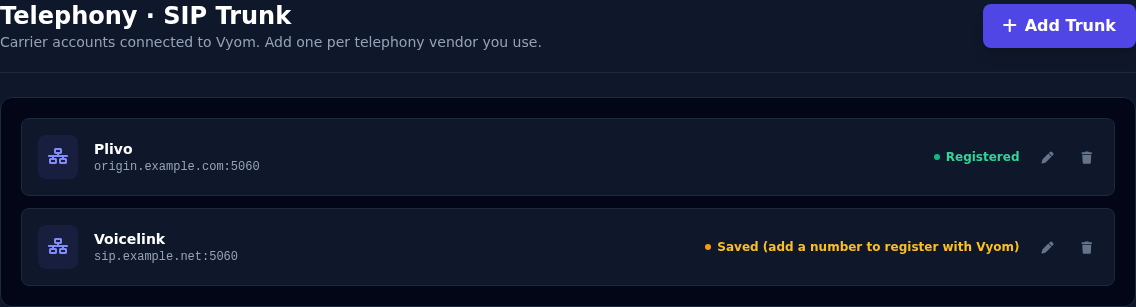
Each trunk shows the provider, its address, and a status:
| Status | What it means |
|---|---|
| Registered | The trunk is active and ready to carry calls. |
| Saved (add a number to register with Vyom) | The trunk is saved, but it finishes registering only when you add a phone number to it. Add a number next. |
Add a trunk
- Select Add Trunk.
- Fill in the form (below).
- Select Add Trunk.
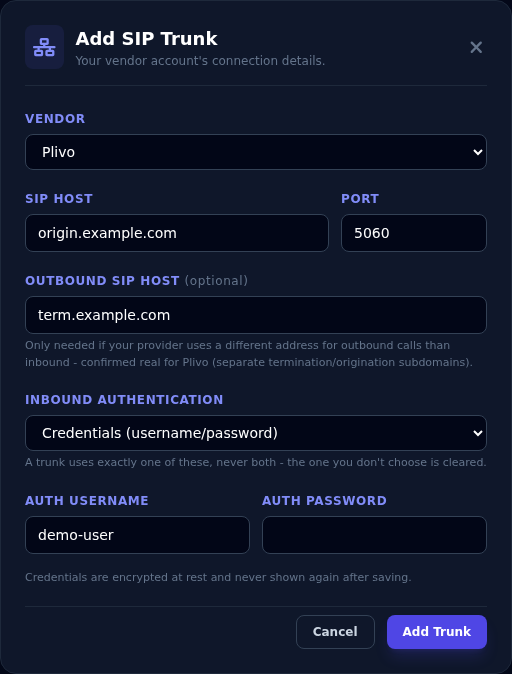
| Field | What to enter |
|---|---|
| Vendor | Your telephony provider: Voicelink or Plivo. |
| SIP Host | The provider's address for inbound calls, for example sip.yourprovider.com. |
| Port | Usually 5060. |
| Outbound SIP Host (optional) | Only if your provider uses a different address for outbound calls. Leave it blank to use the SIP Host for both. |
| Inbound Authentication | How your provider proves that a call is really from them. See below. |
Inbound authentication
Choose one of three ways. A trunk uses exactly one, never two.
| Choice | Use it when |
|---|---|
| Credentials (username/password) | Your provider gave you a username and password for the trunk. Enter them. They are encrypted and never shown again. |
| IP Allowlist (trust specific source IPs) | Your provider calls from fixed addresses. Enter the trusted addresses, one per line. Ranges such as 203.0.113.0/24 are allowed. |
| Use this provider's default IP allowlist | Vyom already knows your provider's addresses. Select this to trust them. The addresses are shown so you can see what is trusted. |
If the last choice says that no default addresses are set for your provider, contact support.
Notes for each provider
| Provider | Notes |
|---|---|
| Plivo | Plivo uses two different addresses: one where calls come in, and another where calls go out. Put the first in SIP Host and the second in Outbound SIP Host. If outbound calls fail with "Trunk Not Found", the outbound address is usually wrong. Each Plivo customer has their own address. |
| Voicelink | Uses one address for both directions. Leave Outbound SIP Host blank. Voicelink allows one call at a time on outbound, so keep Max Concurrent Calls at 1. |
Change or delete a trunk
- The pencil edits a trunk. You cannot change the Vendor or switch to the IP Allowlist mode. To do that, delete the trunk and add it again. Leave the username and password blank to keep them.
- The bin deletes a trunk, after you confirm.
Deleting a trunk deletes its numbers and rules
Every phone number and dispatch rule on the trunk is deleted too, and calls to those numbers stop working.
If something goes wrong
| What you see | What it means and what to do |
|---|---|
| "SIP host is required." | Enter the provider's address. |
| "Add at least one trusted IP/CIDR, or switch to Credentials." | You chose IP Allowlist but left the box empty. |
| "Could not add this trunk" | Read the reason shown. Check the address and sign-in details with your provider. |
| The status stays Saved | Add a phone number to the trunk. It registers then. |
| Outbound calls fail with "Trunk Not Found" | Check the Outbound SIP Host (Plivo). |
| You cannot change the Vendor | Delete the trunk and add it again. |
Need help or clarification?
Email support@eternascisense.com,
or call the support number shown on
vyom.eternascisense.com.