Agent Actions
An action is something your agent can do during a call, not just say. It can look up a booking, send a confirmation email, collect a date of birth on the keypad, send a WhatsApp message, or hand the caller to a person.
Where to find it: Agent Builder, Agent Actions tab.
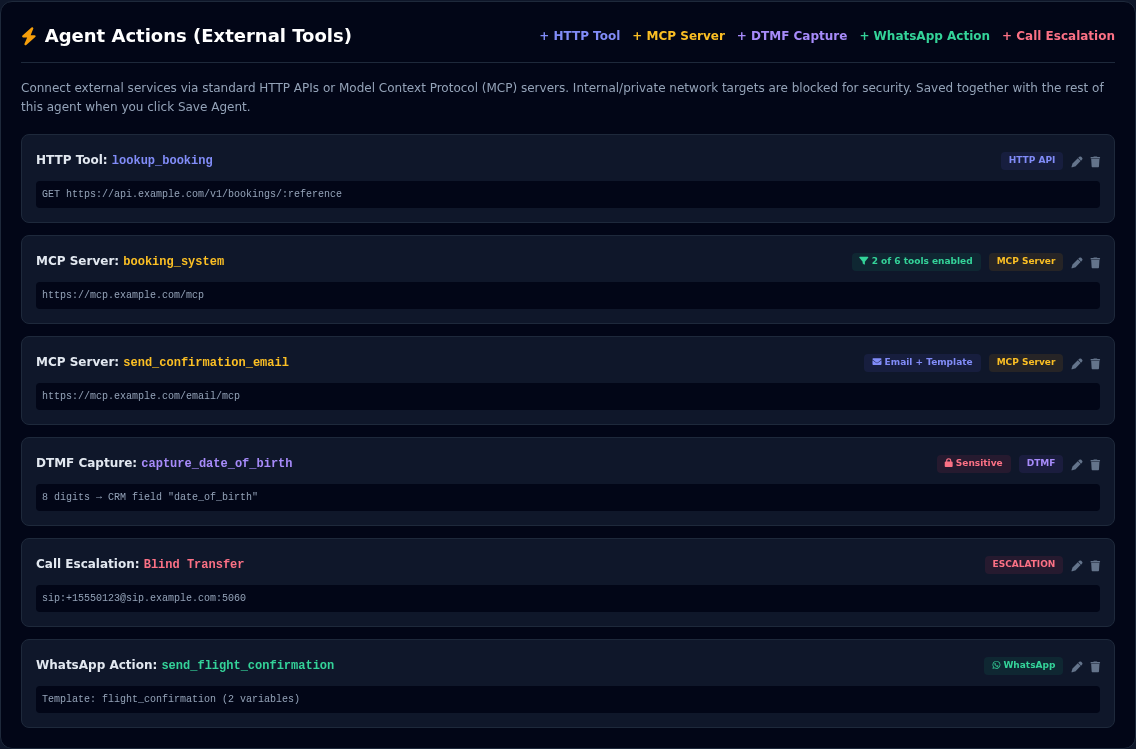
The kinds of action
| Action | What it does | Page |
|---|---|---|
| HTTP Tool | Calls a web service of yours, for example to look up or create a record. | HTTP Tools |
| MCP Server | Connects the agent to a system that speaks the MCP standard, and lets it use that system's tools. | MCP Servers |
| MCP Server, with an email configuration | Sends an email during the call. | Sending Email |
| DTMF Capture | Asks the caller to type digits on the phone keypad, for example a date of birth or a card's last four digits. | DTMF Keypad Capture |
| WhatsApp Action | Sends an approved WhatsApp message to the caller. | WhatsApp Actions |
| Call Escalation | Hands the caller over to a person. | Call Escalation |
How the agent uses an action
Every action has a name and a description. During a call the agent reads them and decides for itself when to use each action. You do not write any code.
- The name is a short label, for example
lookup_booking. Use lower-case words joined by underscores. - The description tells the agent when to use it, in plain words: "Find a booking by its reference. Use this when the caller gives a booking reference."
The description matters most
A clear description is the difference between an agent that uses an action at the right moment and one that never uses it. Say when to use it, and what it needs from the caller.
For steps that must happen in a fixed order, name the action in the Agent Definition as well. For example: "After you have the caller's name, use capture_date_of_birth." The Insert Variable button on the General Details tab lists your HTTP tools, MCP servers and DTMF actions so you can insert their exact names without typing them. See General Details.
Add, change and remove an action
- Open the Agent Actions tab.
- Select a button at the top right: + HTTP Tool, + MCP Server, + DTMF Capture, + WhatsApp Action or + Call Escalation. A form opens under the list.
- Fill it in and select Save Tool, Save Server or Save Action.
- The action appears as a card in the list. Use the pencil to change it and the bin to remove it.
- Select Save Agent. Actions are kept with the agent, so nothing is saved until you save the agent.
Save Agent, or your actions are lost
Adding an action and then leaving the page without selecting Save Agent throws the action away. Agent Preview saves for you.
Call Escalation is different from the others: an agent has at most one. The + Call Escalation button opens the existing one for editing if you already have it.
Abilities every agent already has
You do not need to add these.
| Ability | What it does |
|---|---|
| Search knowledge | If you attached documents, the agent searches them to answer questions. See Attaching Knowledge. |
| Switch language | The agent can change language when the caller asks. See Agents That Speak Several Languages. |
| End the call | After saying goodbye, the agent hangs up on its own. |
Good practice
- Give an agent only the actions it needs. Each action is described to the model on every turn. More actions mean a slower, less accurate agent.
- Test every action in Agent Preview with real values before you go live. Check the result in the other system too. See Preview and Go Live.
- Keep secrets in mind. Anything in a Headers box, such as an API key, can be seen by anyone who can open this agent. Use a key made only for this purpose, with the fewest rights possible.
- Internal addresses are blocked. For safety, actions cannot call addresses inside a private network, such as
localhostor192.168.x.x. Use a public address. - Watch what your agent does. Every action call is recorded for Agent Insights. See Agent Insights.
If something goes wrong
| What you see | What it means and what to do |
|---|---|
| "URL is not allowed (internal/private target)" | The address points inside a private network. Use a public address. |
| The action is missing after I left the page | You did not select Save Agent. Add it again and save. |
| The agent never uses the action | Improve the description. Say when to use it. Mention it by name in the Agent Definition. |
| The agent uses the wrong action | Make the descriptions clearly different. Remove actions the agent does not need. |
| The agent says an action failed | See the troubleshooting section on that action's page. |