Preview and Go Live
Before your agent talks to customers, talk to it yourself. The Agent Preview tab lets you have a real voice conversation with the agent, using your computer's microphone.
Where to find it: Agent Builder, Agent Preview tab.
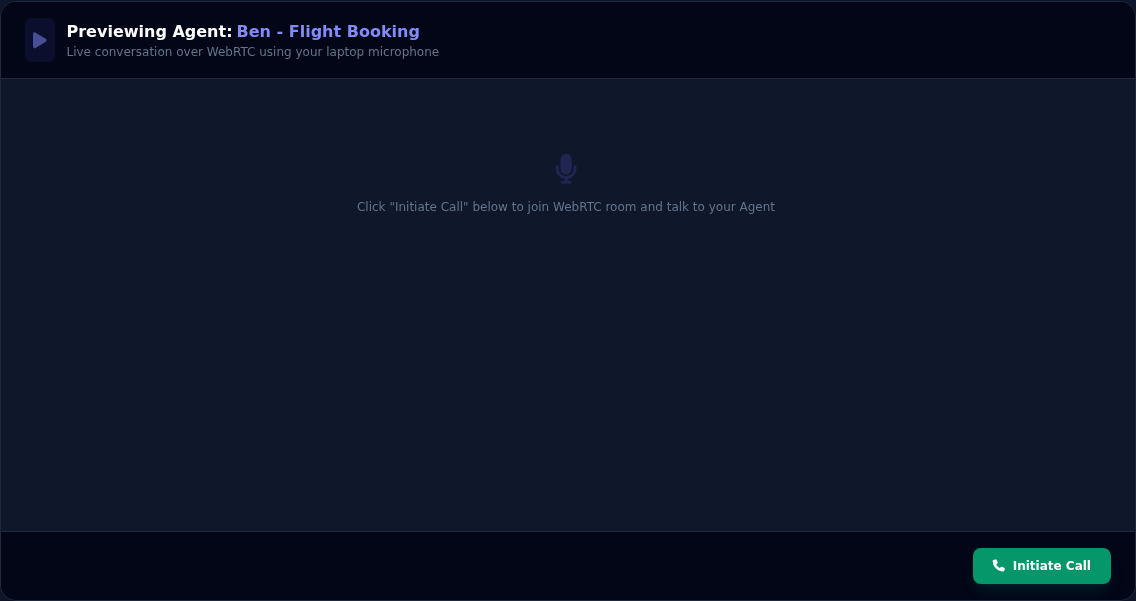
Try your agent
- Open the Agent Preview tab.
- Select Initiate Call. Your browser asks to use the microphone. Allow it.
- Wait for the agent's greeting, then talk to it as a customer would.
- The words appear on screen as you talk. A moving wave shows when the agent is speaking.
- Select Disconnect Call to finish.
What Preview does for you
- It saves your current settings first. You do not have to select Save Agent before you try a change.
- It never changes the agent's status. A Draft agent stays a Draft, and an Active agent stays Active.
- A Draft agent can be previewed. It only cannot take real phone calls.
- It needs a valid API key for each AI provider, just like saving.
- It ends itself when nobody speaks. After 10 seconds of silence the agent asks if you want to continue. If you don't answer within another 10 seconds, it says goodbye and the Preview ends. Say anything to carry on.
- It stops at the agent's Agent Talk Time Limit, like a real call.
If you cannot hear the agent
Some browsers block sound until you click on the page. Click anywhere on the page. If that does not help, check the tab is not muted and that your speakers are on.
What to check
Try the agent the way a customer would, and check:
- The greeting sounds right and is in the right language.
- The agent stays in role. Ask something off-topic. It should politely steer back.
- Facts from your documents are correct. Ask a question whose answer is in an attached document.
- Actions work: a booking, a lookup, a message sent. Check the result in the other system.
- Interruptions: talk over the agent. It should stop, and it should not stop because of a cough.
- Pauses: speak slowly. The agent should not cut in.
- Each language, if the agent uses more than one. See Agents That Speak Several Languages.
- Ending the call: does the agent say goodbye and finish cleanly?
Change the settings, and try again. Calls made in Preview do not go through a phone number, so they do not test your phone setup. Test that with a real call once the agent is Active.
Go live
- On General Details, set Agent Status to Active.
- Select Save Agent.
- For an inbound agent, make sure a phone number sends calls to it. See Telephony and Call Direction.
- For an outbound agent, set Outbound Campaigns to Enabled, upload the contact list, and launch it. See Launching Outbound Agents.
- Make one real phone call to check it works end to end.
You can also change status from the Agents page: select the three dots on the card, then Activate or Deactivate.
To take an agent out of service, set it to Inactive. Its settings are kept.
Agent Skills
The Agent Skills tab is Coming Soon. It will offer ready-made abilities that you can switch on for an agent. There is nothing to set up there today. To give your agent new abilities now, use Agent Actions.
If something goes wrong
| What you see | What it means and what to do |
|---|---|
| "Could not save your current configuration before previewing" | Read the message. Most often an API key is missing. Open AI Models and fix it. |
| The browser does not ask for the microphone | Check the browser's site settings and allow the microphone for the console page. |
| The agent does not speak | Check the sound is not blocked, and that the agent has a greeting or that you speak first. Try again. |
| The Preview ended by itself | Nobody spoke for about 20 seconds, or the call reached the Agent Talk Time Limit. Select Initiate Call to start again. |
| Preview works but real calls do not | Preview does not use a phone number. Check the number, the dispatch rule, the status Active and Inbound Calls. |