WhatsApp Actions
A WhatsApp Action lets your agent send one specific, approved WhatsApp message to the caller during the call, for example a flight confirmation or a payment link.
Where to find it: Agent Builder, Agent Actions tab, + WhatsApp Action.
Before you start
Set up WhatsApp under Messaging first. See WhatsApp.
- Connect your WhatsApp Business account.
- Have at least one approved template. WhatsApp only lets a business start a chat with a pre-approved message. Only approved templates appear in the action's list.
Add a WhatsApp Action
- Open the Agent Actions tab and select + WhatsApp Action.
- Fill in the form (below).
- Select Save Action, then Save Agent.
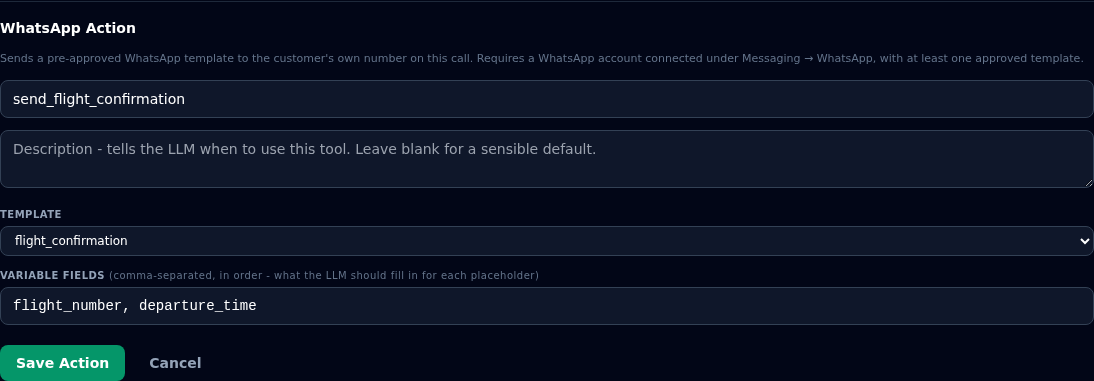
| Field | What to enter |
|---|---|
| Tool name (required) | For example send_flight_confirmation. |
| Description | When the agent should send it. Leave it blank for a sensible default. |
| Template (required) | One of your approved templates. |
| Variable fields | The names of the values to fill in, comma-separated, in the same order as the template's placeholders. |
Variable fields
A template has numbered placeholders, for example:
Your flight {{1}} departs at {{2}}.
Enter one name for each placeholder, in order:
flight_number, departure_time
Before sending, the agent works out a value for each name from the conversation. Choose clear names, because the agent uses them to know what to fill in.
Who the message goes to
The message always goes to the number of the person on the call. The agent cannot choose another number. This keeps customers' numbers safe.
Asking for permission (opt-in)
WhatsApp rules, and good practice, say customers should agree to receive messages. In your WhatsApp settings under Messaging, you choose how this works:
| Setting | What it means |
|---|---|
| Agent must ask for opt-in before sending (recommended) | The agent must ask "Would you like this on WhatsApp?" and record the answer. If the customer has not agreed, no message is sent, and the agent asks first. |
| Turned off | You collect consent yourself, outside Vyom. |
With the recommended setting, mention it in the Agent Definition, for example: "Before you send a WhatsApp message, ask the caller if they would like it on WhatsApp."
Check what was sent
Each message is listed in Messaging History, with its status. See Messaging History.
If something goes wrong
| What you see | What it means and what to do |
|---|---|
| "No approved templates yet - add one under Messaging → WhatsApp first" | Connect WhatsApp and get a template approved first. |
| "Tool name and a template selection are both required." | Fill in both. |
| The agent says it cannot send yet | The customer has not agreed to WhatsApp messages. Let the agent ask, then try again. |
| The agent says the message could not be sent | Check your WhatsApp connection and the message's status in Messaging History. |
| The message shows the wrong values | The variable fields are in the wrong order, or misspelt. Match them to the placeholders. |