Agent Call History
Agent Call History is the record of every call your agents took and made. Use it to see who called, how long they talked, what was said, and what happened next: a transfer, an email, a WhatsApp message.
Where to find it: Console menu, Agent Call History.
Who can use it: every role. It has two tabs: Inbound for calls customers made to you, and Outbound for the calls your agents made.
Inbound calls
The Inbound tab lists calls that customers made to your agents. Calls are grouped by agent, newest first.
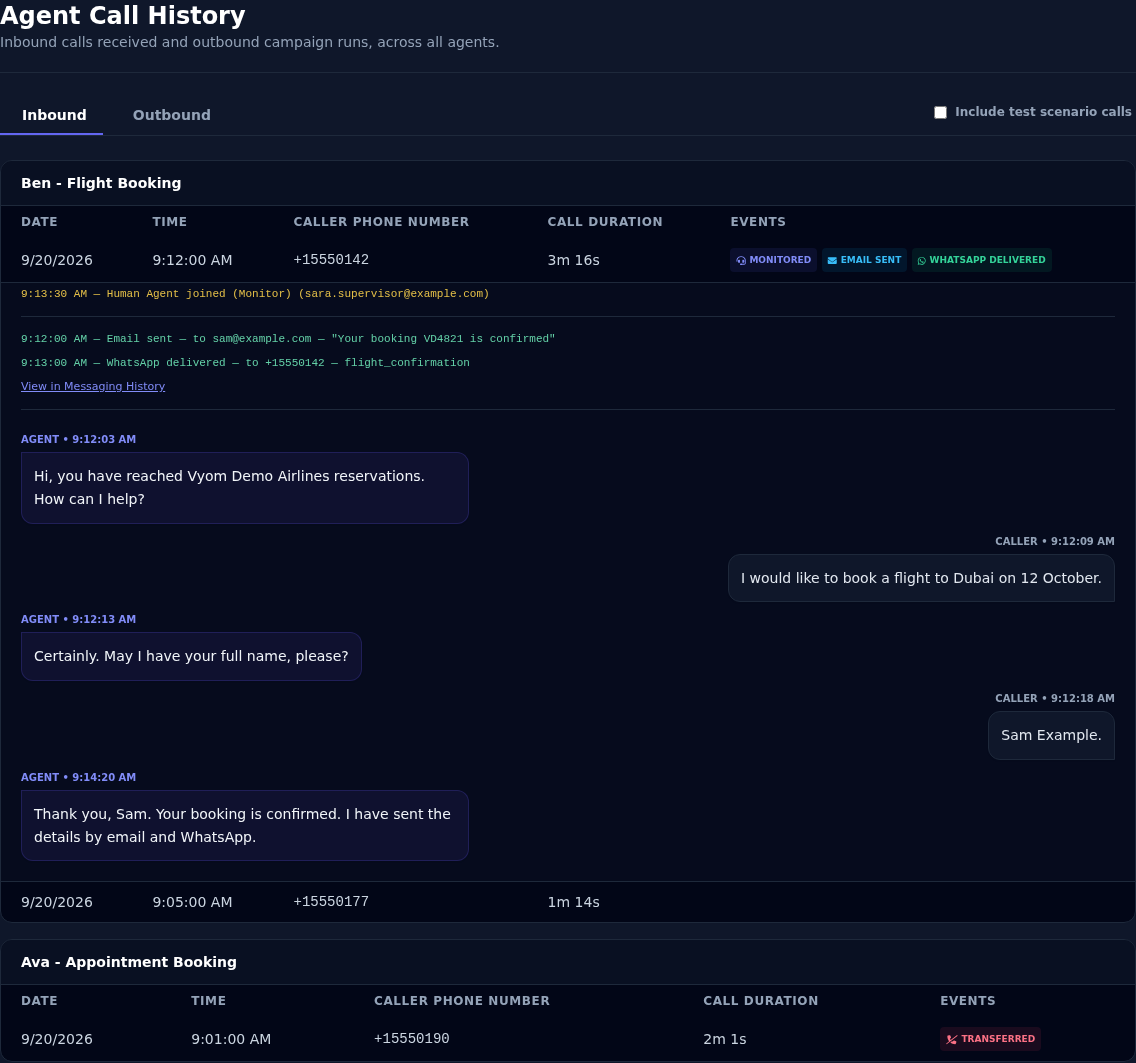
| Column | What it shows |
|---|---|
| Date and Time | When the call started, in your local time. |
| Caller Phone Number | The number the customer called from. |
| Call Duration | How long the call lasted, for example 3m 16s. |
| Events | Badges for anything that happened besides talking. See Events. |
Select a row to open the call. You see:
- Escalation events, if a person joined or the call was transferred.
- Messages sent during the call, with a View in Messaging History link.
- The transcript: the whole conversation, word for word.
Select the row again to close it.
The transcript
The transcript shows each turn of the call, with the time. Agent turns are on the left. Caller turns are on the right. It is produced automatically from the conversation.
- "No transcript captured for this call" means nothing was recorded for it, for example when the caller hung up before anyone spoke.
- Transcripts are text only. Call Recordings are not played here.
- Speech recognition is not perfect. A transcript can contain small mistakes, especially with names and numbers.
After a person takes over
When a supervisor takes over a call, their words are recorded too, but they currently appear on the caller's side of the transcript. Use the Escalation events line above the transcript to see when the takeover happened.
Outbound calls
The Outbound tab lists runs, not single calls. A run is one launch of an agent, made with Call Now, a schedule or an event. See Launching Outbound Agents.
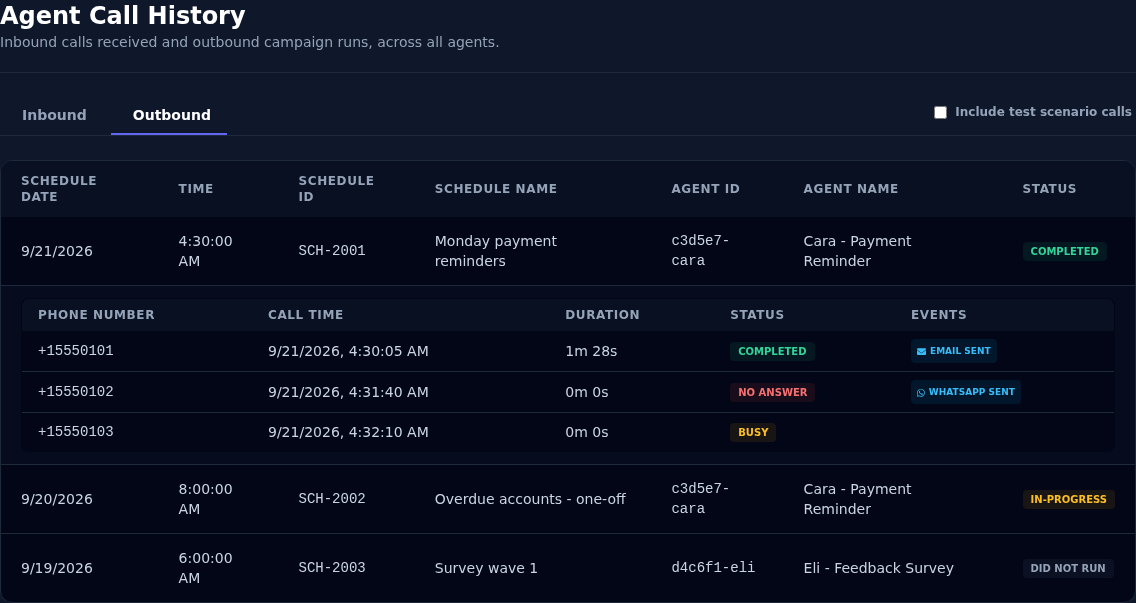
| Column | What it shows |
|---|---|
| Schedule Date and Time | When the run was set to start. |
| Schedule ID and Schedule Name | Which schedule it belongs to. |
| Agent ID and Agent Name | The agent that made the calls. |
| Status | See below. |
| Run status | What it means |
|---|---|
| Completed | The run finished. |
| In progress | Calls are still being made. |
| Failed | The run could not complete. |
| Did not run | The run was due, but did not start. For example, the agent's outbound dialing was switched off. |
Select a run to see every call in it:
| Column | What it shows |
|---|---|
| Phone Number | The number that was called. |
| Call Time and Duration | When it started and how long it lasted. |
| Status | The result of the call. See below. |
| Events | Badges, as for inbound calls. |
| Call result | What it means |
|---|---|
| Completed | The person answered and the call finished normally. |
| No Answer | The phone rang and nobody answered. |
| Busy | The line was busy. |
| Rejected | The person declined the call. |
| Failed | The call could not be made, for example a problem at the phone provider. |
Select a call to open its escalation events, messages and transcript, in the same way as for inbound calls.
Events
The Events column shows small badges, so you can see at a glance what else happened on a call.
| Badge | What it means |
|---|---|
| Monitored | A supervisor joined and listened in. |
| Taken Over | A supervisor took over from the agent. |
| Transferred | The call was transferred to another number. |
| Email sent or Email failed | An email was sent to the customer during or after the call. |
| WhatsApp sent, delivered or failed | A WhatsApp message was sent. On unanswered outbound calls, this is the automatic follow-up. |
If several messages were sent, the badge shows the count, for example x2. If any of them failed, the badge shows failed.
More detail is in Call FW & Escalations and Messaging History.
Test calls
Calls made by Test Scenarios are hidden by default, so a test never looks like a customer call. Tick Include test scenario calls at the top right to show them. They carry a Test badge.
How long calls are kept
Call records are kept for the period set in your Retention & Privacy settings, and are then removed. See Retention & Privacy.
If something goes wrong
| What you see | What it means and what to do |
|---|---|
| "No inbound calls recorded yet." | No customer has called yet, or the calls are older than your retention period. |
| "No outbound schedule runs yet." | You have not launched an agent yet. See Launching Outbound Agents. |
| A run shows "No calls were dialed in this run." | The run started but had no one to call, for example no Pending contacts. |
| A call is missing | It may be a test call. Tick Include test scenario calls. |
| A call has no transcript | Nothing was recorded, or the call ended too soon. |
| "Could not load inbound call history." | Reload the page. If it continues, contact support. |
| The message link says the call cannot be found | The call may be filtered out, for example a test call. |