Call FW & Escalations
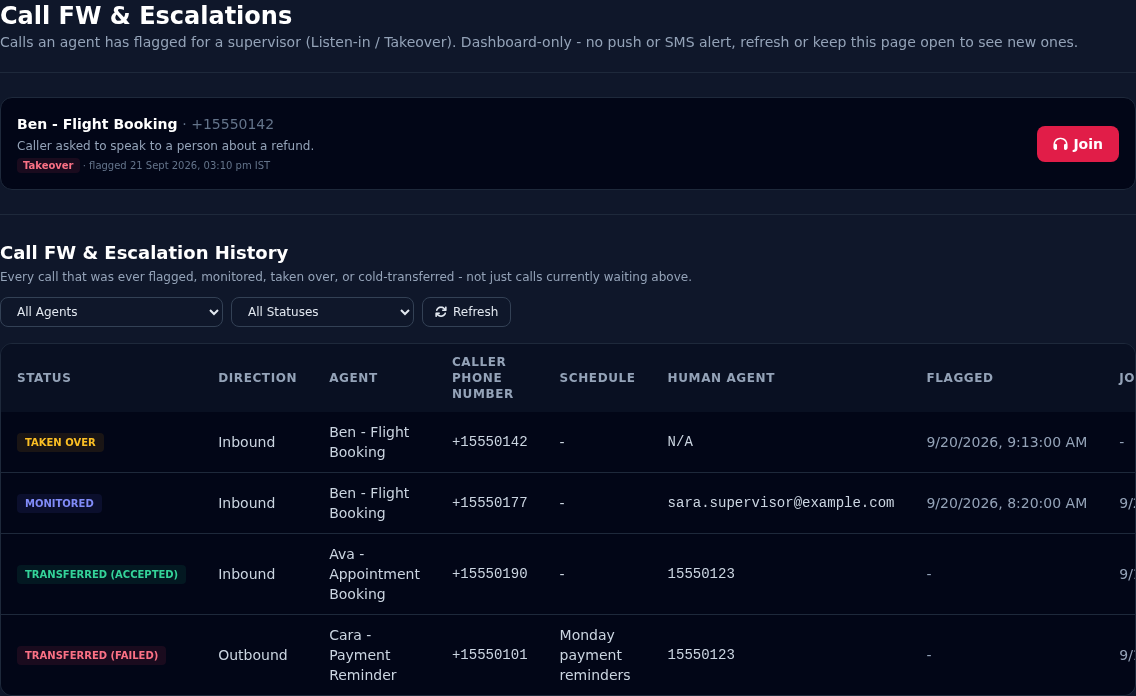
Sometimes a caller needs a person, not an agent. Call FW & Escalations is where your team sees which calls need a person, joins them, and reviews what happened afterwards. ("FW" means forwarding.)
Where to find it: Console menu, Call FW & Escalations.
Who can use it: Tenant Supervisor and above. A red badge on the menu item counts the calls waiting.
The page has two halves:
| Half | What it is |
|---|---|
| Top: calls needing attention | Calls that an agent has flagged right now. You can join them. |
| Bottom: Call FW & Escalation History | Every call that was ever flagged, monitored, taken over or transferred. |
How a call gets here
An agent flags or transfers a call when it is set up to. A Tenant Developer sets this up in the agent's Call Escalation action, and chooses one of three modes. See Call Escalation.
| Mode | What happens | What you see here |
|---|---|---|
| Listen-in | The call is flagged. You can join and listen silently. The agent keeps talking to the caller. | The call appears in the top list. |
| Takeover | The call is flagged. You can join, listen, and take over from the agent. | The call appears in the top list. |
| Blind Transfer | The call is moved to another phone number and the agent leaves. | Nothing in the top list, because nobody needs to join. It is recorded in the history. |
Only Listen-in and Takeover calls appear in the top list. In both, the caller is never disconnected.
Calls needing attention
Each flagged call shows:
- The agent and the caller's number.
- The reason the agent gave, for example "Caller asked to speak to a person about a refund."
- The mode (Listen-in or Takeover) and when it was flagged.
- A Join button.
There is no alarm
Vyom does not send a text message, email or sound when a call is flagged. Keep this page open, and watch the badge on the menu item. The list refreshes by itself about every 15 seconds. You can also reload the page.
Join a call
- Select Join on the call.
- You should hear the call within a few seconds. If you hear nothing, click anywhere on the page.
- You are now listening. Your microphone is off, so the caller and the agent cannot hear you.

You can join one call at a time. Select Leave to stop listening. The call carries on.
Take over a call
The Take Over button appears only on Takeover calls.
- While listening, select Take Over. Allow your browser to use the microphone.
- The agent steps back and stops talking. Your microphone goes live, and the caller now talks to you.
- Select Leave when you have finished.
Say hello first
The caller has been talking to an agent. Tell them who you are, and that you have seen what they have discussed so far.
If a call is no longer listed when you select Join, it has ended, or someone else has picked it up.
Call FW & Escalation History
The history lists every escalated call, newest first. Use it to check how often callers ask for a person, and what happened.
| Column | What it shows |
|---|---|
| Status | What happened. See below. |
| Direction | Inbound or Outbound. |
| Agent | The agent on the call. |
| Caller Phone Number | The customer's number. |
| Schedule | For outbound calls, the schedule that made it. |
| Human Agent | Who dealt with it: the supervisor's email for a listen-in, or the destination number for a transfer. |
| Flagged | When the agent flagged the call. |
| Joined | When a person joined or the transfer started. |
| Took Over | When a person took over. |
| Call Session / Room | The first characters of the call's ID. Use it when contacting support about a call. |
| Status | What it means |
|---|---|
| Flagged | The agent asked for a person, but nobody joined. |
| Monitored | A supervisor joined and listened. |
| Taken Over | A supervisor took over from the agent. |
| Transferred (Accepted) | The call was moved, and the phone provider accepted the transfer. |
| Transferred (Failed) | The transfer did not go through. |
Filter the list by Agent or by Status, and select Refresh to reload it.
Some cells show N/A or a dash when the information does not exist. For example, Vyom does not record who took over a call, so Human Agent is N/A for a takeover.
What 'Accepted' means
Transferred (Accepted) means your phone provider took the transfer request. It does not prove that the person at the other number answered. Once a call is moved, Vyom can no longer see what happens to it.
See the call itself
The same events appear in Agent Call History as Monitored, Taken Over and Transferred badges. Open that call to see a line such as "Human Agent joined (Monitor)" above the transcript.
Good to know
- A call flagged more than once keeps only the latest reason and time.
- There is no warm transfer. Vyom cannot introduce you to the caller and then leave the agent in place. Use Takeover if you want to step in after the agent.
- Blind transfers depend on your phone provider. Test yours with a real call. See Call Escalation.
- Records begin when the feature was switched on. Older calls have blanks for some columns.
If something goes wrong
| What you see | What it means and what to do |
|---|---|
| Call FW & Escalations is missing from the menu | It needs the Tenant Supervisor role or above. |
| "No calls currently need attention." | Nothing is flagged. The list refreshes by itself. |
| A flagged call is missing | It may have ended, or it is a Blind Transfer. Check the history. |
| "This call is no longer listed" | The call ended or was already picked up. |
| "Could not join this call" | Try again. Check that your network allows real-time audio (some company firewalls block it). |
| You cannot hear the call | Click anywhere on the page. Browsers block sound until you interact with the page. |
| You took over but the caller cannot hear you | Check that the browser allowed the microphone, and that the right microphone is chosen. |
| There is no Take Over button | The agent is set to Listen-in, which is listen-only. A Tenant Developer can change the mode. |
| Transferred (Failed) | The destination did not accept the transfer. Check the destination in the agent's Call Escalation action. |