Call Escalation
Call Escalation lets your agent bring in a person when a caller asks for one, or when the agent cannot help. You choose how the person gets involved.
Where to find it: Agent Builder, Agent Actions tab, + Call Escalation.
An agent has one escalation setting. Selecting + Call Escalation again opens the existing one for editing.
The three modes
| Mode | What happens | The caller |
|---|---|---|
| Blind Transfer | The call is moved to another phone number, and the agent leaves the call. | Is connected to the new number. |
| Listen-in | The call is flagged for a supervisor, who joins silently and listens. The agent keeps talking. | Is not disconnected. Is not told anyone is listening. |
| Takeover | The call is flagged for a supervisor, who can join and take over from the agent. | Stays connected to the agent until a supervisor takes over. |
Listen-in and Takeover never disconnect the caller. The supervisor joins from Call FW & Escalations in the console. See Call FW & Escalations.
Add a Call Escalation
- Open the Agent Actions tab and select + Call Escalation.
- Choose the Mode.
- For Blind Transfer, enter the Transfer destination.
- Select Save Action, then Save Agent.
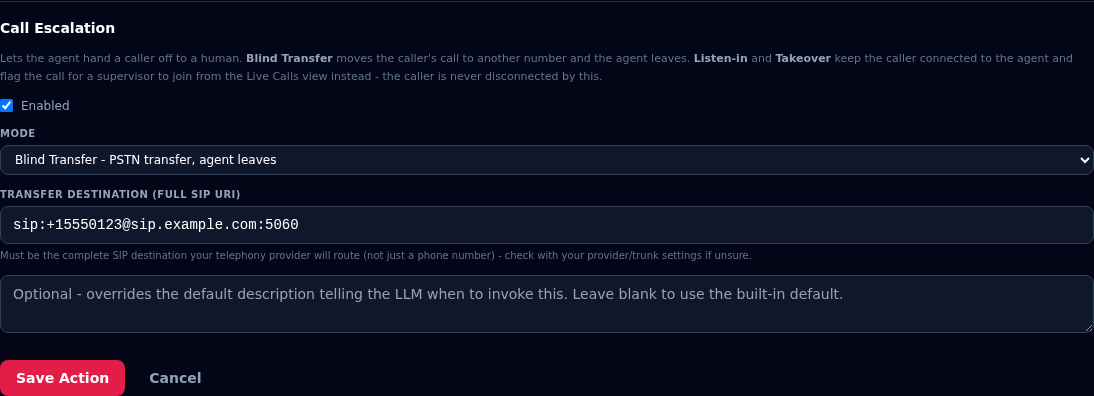
| Field | What to enter |
|---|---|
| Enabled | Untick to switch escalation off without deleting it. |
| Mode | Blind Transfer, Listen-in or Takeover. |
| Transfer destination (full SIP URI) | Blind Transfer only. See below. |
| Description | Optional. Tells the agent when to escalate. Leave it blank to use Vyom's default. |
The transfer destination
The destination must be a complete SIP address, not just a phone number, in this form:
sip:+15550123@sip.example.com:5060
Your phone provider gives you the right form. Check your provider's or trunk's settings, or ask them, if you are unsure.
What happens on a Blind Transfer
- The call is moved to the number you entered.
- The agent leaves the call. It cannot say anything afterwards.
- Once the call is moved, Vyom cannot tell whether the other number answered. If the destination is busy or does not pick up, the caller may be disconnected, and the agent cannot try something else.
- Transfers depend on your phone provider. Not every provider supports them. Test with a real call before you rely on it.
- On a Vyom number with an individual account, a transfer needs two phone lines: one for the caller and one for the transfer. Vyom won't let you turn Blind Transfer on until you have them. See Phone lines.
Use a number that is always answered
Point the transfer at a number that is staffed, such as a hunt group or a support line, not one person's mobile.
Agents without call escalation
If an agent has no call escalation set up, it never pretends to transfer. When a caller asks to be transferred or to speak to a person, the agent says it can't transfer them and offers to take a message or arrange a callback.
Testing
Agent Preview cannot test a Blind Transfer. Preview is not a phone call, so there is no phone line to move. Test with a real phone call.
Writing your instructions
Tell the agent when to escalate. For example, in the Agent Definition:
If the caller asks for a person, or is upset, or you cannot answer after two tries,
offer to connect them with a colleague and use the escalation.
For Listen-in and Takeover, tell the agent to keep the conversation going and not to promise that someone is joining until they actually do.
If something goes wrong
| What you see | What it means and what to do |
|---|---|
| "Blind Transfer needs a transfer destination (a complete SIP URI)." | Enter the destination in the SIP form shown above. |
| The transfer did not happen | The destination is wrong, or your phone provider does not support transfers. Check the address and test again. |
| The caller was cut off during a transfer | The destination did not answer. Use a number that is always answered. |
| "Call forwarding needs a second phone line …" | Your Vyom number has one line. Add a line under Phone Numbers, Vyom numbers, then turn Blind Transfer on. |
| The agent never escalates | Make the description clearer, and mention escalation in the Agent Definition. |
| A supervisor cannot see the flagged call | Only Tenant Supervisors and above can see Call FW & Escalations. |