Getting Started
This page explains what Vyom is, how to register your organisation, how to sign in, and what you will see in the console.
What Vyom is
Vyom is an Agentic AI Platform for building AI voice agents. An agent is a virtual team member that talks to people on the phone. It can:
- Answer calls made to your phone numbers (inbound).
- Make calls to a list of people, now or on a schedule (outbound).
- Look up answers in documents you provide.
- Work with your other systems, for example to book an appointment.
- Send an email or a WhatsApp message.
- Hand over the call to a person on your team when needed.
How a call works
flowchart LR
    A[Caller] --> B[Your phone number]
    B --> C[Your Vyom agent]
    C --> D[Knowledge base]
    C --> E[Your other systems]
    C --> F[Email or WhatsApp]
    C --> G[A person on your team]
The agent listens to the caller, decides what to say or do, and can use a knowledge base, your systems, messages, or a handover to a person along the way. Every call is recorded in your call history.
Key terms
| Term | What it means |
|---|---|
| Tenant | Your organisation's private space in Vyom. Your agents, people and data belong to your tenant, and other organisations cannot see them. |
| Agent | An AI voice worker with a name, instructions, a voice and a language. It can be inbound (answers calls), outbound (makes calls), or both. |
| Pipeline | How an agent hears and speaks. Cascaded uses separate steps: speech to text, a language model, then text to speech. Speech-to-speech uses one model that handles the audio directly. |
| Knowledge base | Documents your agent can look up to answer questions, such as policies or price lists. |
| Action | Something an agent can do besides talk: use another system, collect keypad digits, send a WhatsApp message, or hand over the call to a person. |
| Campaign | A set of outbound calls to a list of contacts, started now, on a schedule, or by an event. |
| Escalation | Handing over a live call to a person. |
| Role | What a person is allowed to do in Vyom: Viewer, Supervisor, Developer or Admin. |
| Group | A department. Groups can limit which agents a person can work with. |
Register your organisation
You only do this once for your organisation. The person who registers becomes the organisation's first Tenant Admin.
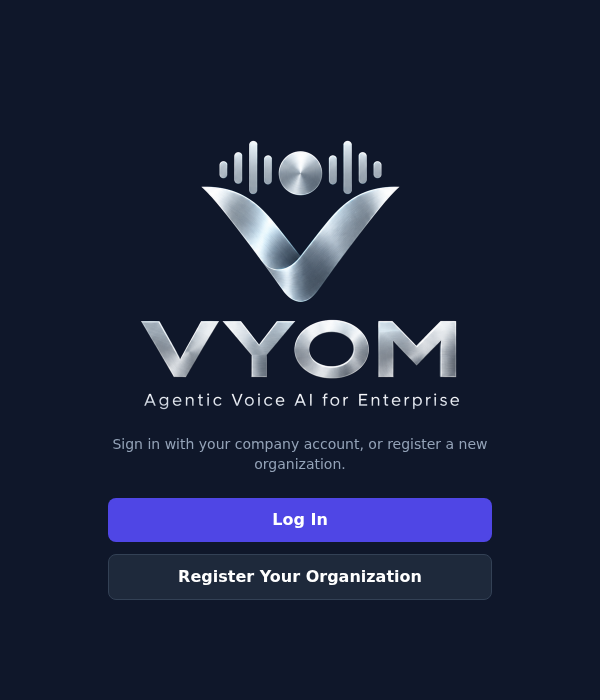
- Open https://vyom.eternascisense.com.
-
Select Register Your Organization.
-
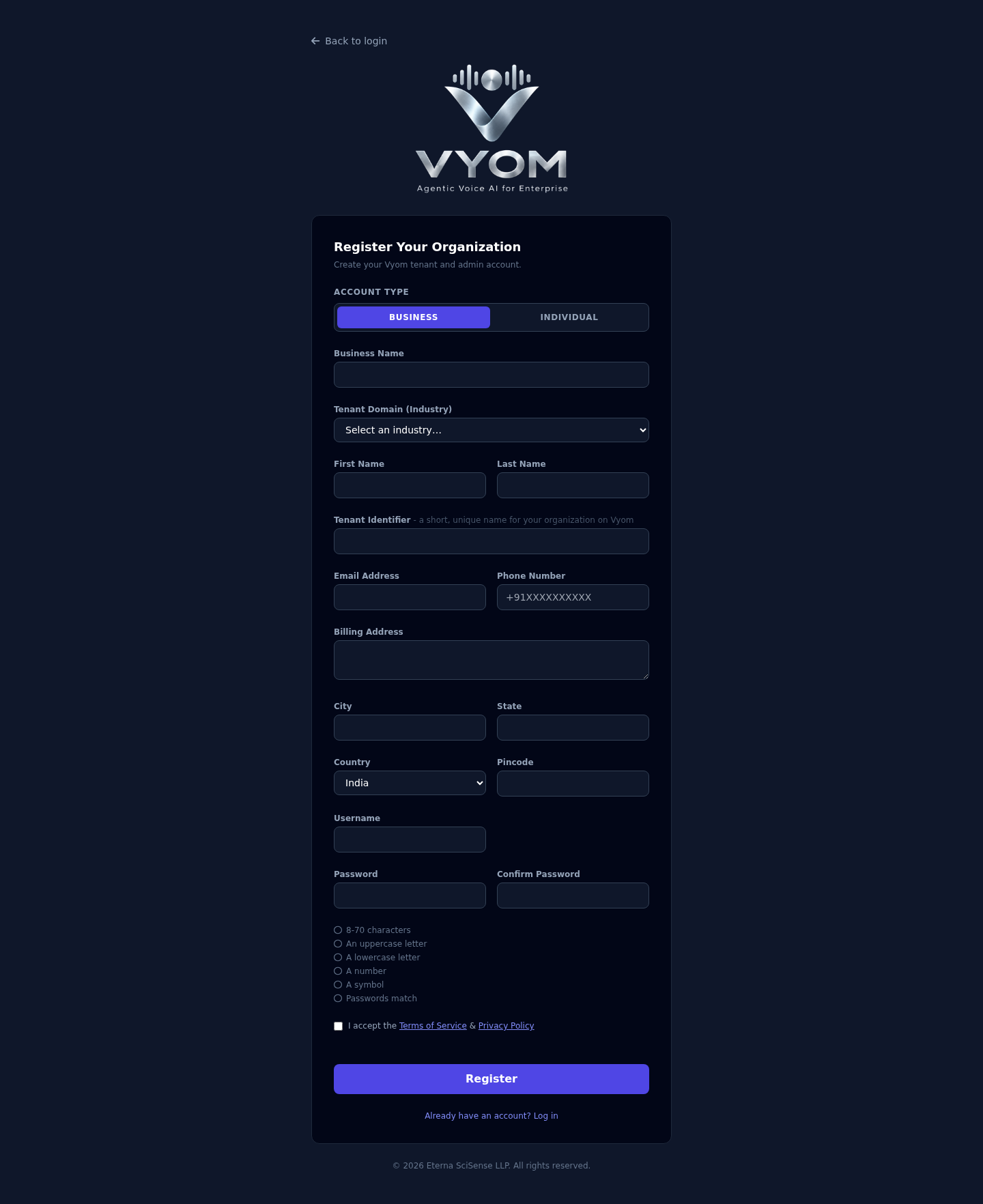
Complete the form:
Field What to enter Account Type Business for a company, or Individual. Business Name Your company name (Business accounts only). Tenant Domain (Industry) The industry you work in. Choose a Sub-Industry if one fits (optional). Tenant Identifier A short, unique name for your organisation on Vyom. It is suggested for you and you can change it. First Name, Last Name Your name. Email Address An address you can open. You must verify it. Phone Number Your number with the country code, for example +91XXXXXXXXXX.Billing Address, City, State, Country, Pincode Your organisation's billing address. Username The name you will sign in with. Password, Confirm Password 8 to 70 characters, with an uppercase letter, a lowercase letter, a number and a symbol. The rules turn green as you meet them. -
Read and accept the Terms of Service and Privacy Policy.
-
Complete the security check, then select Register.
-
Vyom shows "Your organization has been registered." Check your email and verify your address.
Every field is required unless marked optional
Only Sub-Industry is optional. Business Name appears only for Business accounts.
Sign in
- Open https://vyom.eternascisense.com.
- Select Log In.
- Sign in with your company account on the secure sign-in page.
You arrive at the console. To leave, select the sign-out icon at the top right.
A tour of the console
After you sign in you see the Platform Console. The tenant name and your username are at the top right, and the menu is on the left.
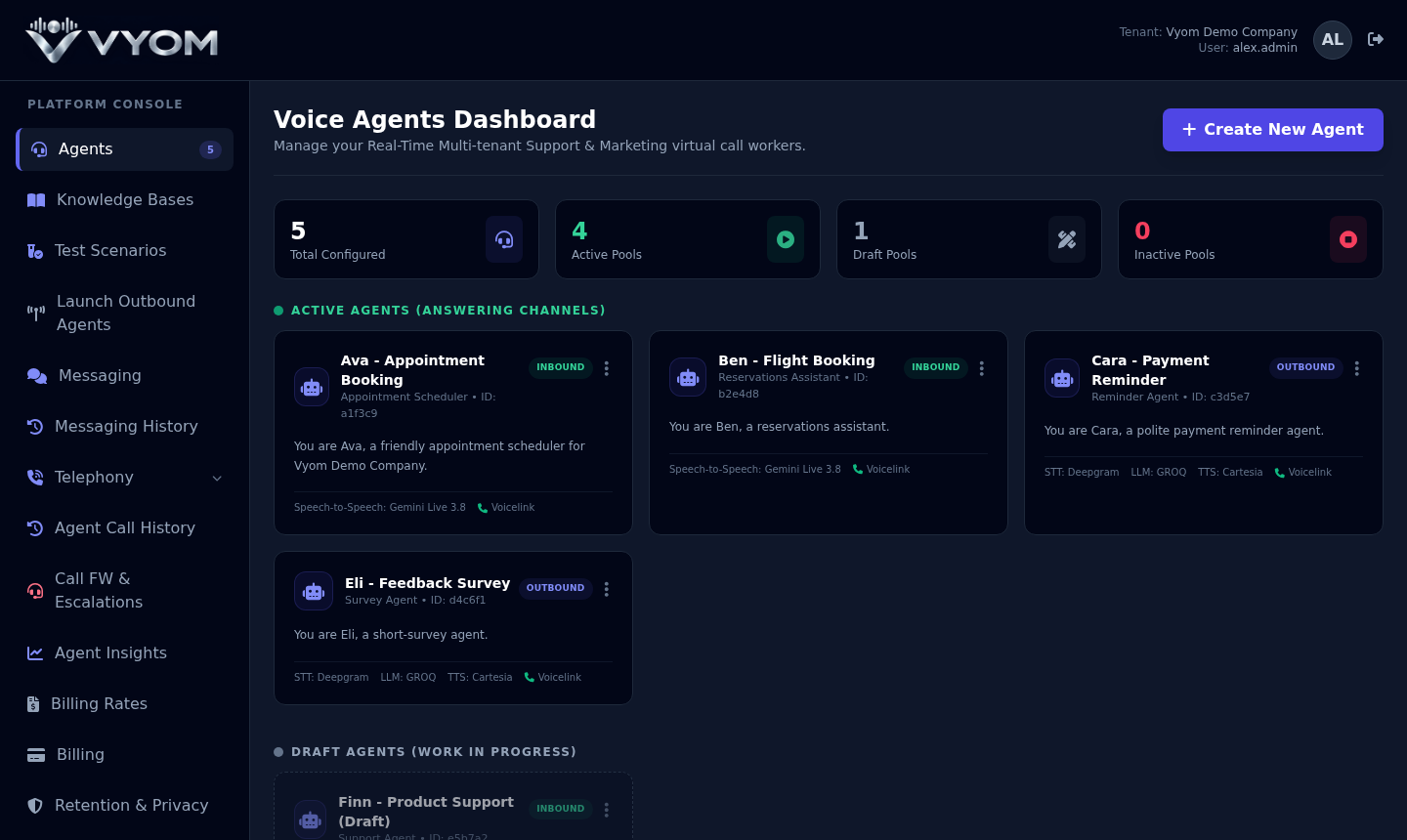
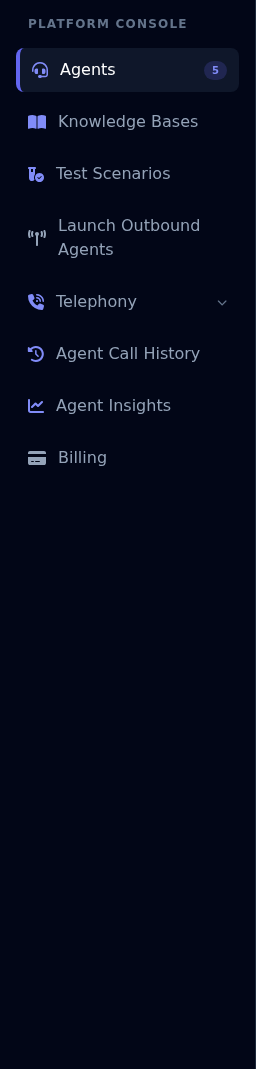
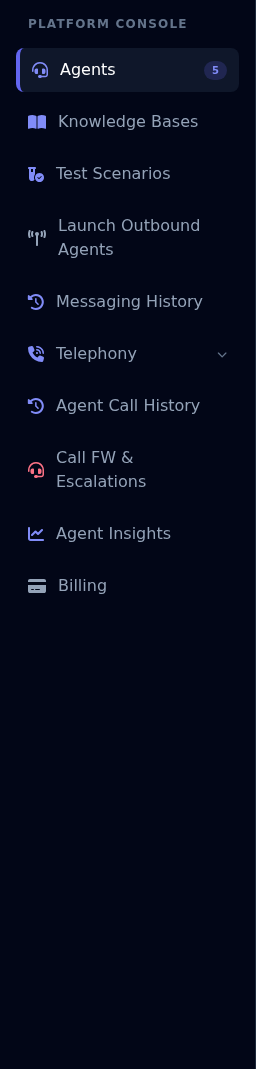
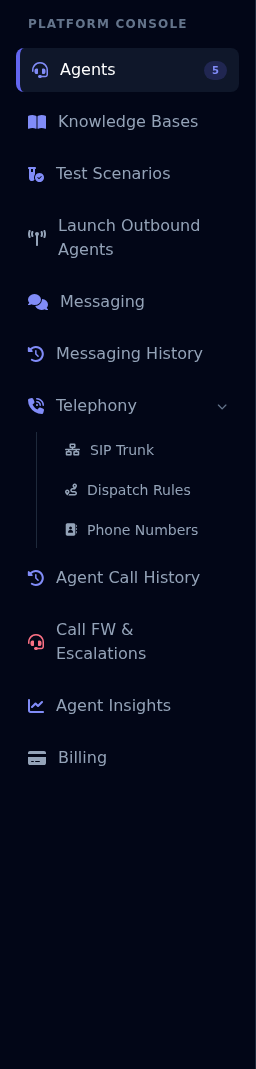
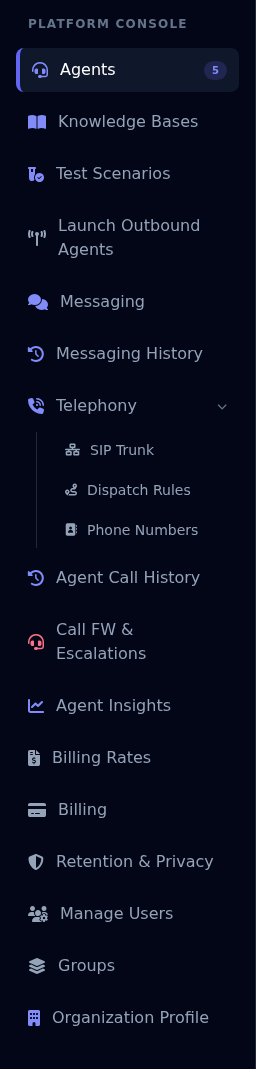
The menu you see depends on your role. Here is every item, and who sees it.
| Menu item | What it is for | Who sees it |
|---|---|---|
| Agents | Your agents: view, create and manage them | All roles |
| Knowledge Bases | Documents your agents look up | All roles |
| Test Scenarios | Testing your agents | All roles |
| Launch Outbound Agents | Start outbound calls now, on a schedule, or from an event | All roles |
| Messaging | Set up email and WhatsApp | Developer and above |
| Messaging History | See every email and WhatsApp message sent | Supervisor and above |
| Telephony | Phone connections: SIP Trunk, Dispatch Rules, Phone Numbers | Developer and above can open these pages. Other roles see the Telephony heading with no pages under it. |
| Agent Call History | Every inbound and outbound call | All roles |
| Call FW & Escalations | Live calls and handovers to people | Supervisor and above |
| Agent Insights | Reports about your agents | All roles |
| Billing Rates | Your organisation's own billing rates | Admin |
| Billing | Usage and billing | All roles |
| Retention & Privacy | How long your data is kept, and erasing a customer's data on request | Admin |
| Organization Profile | Your organisation's registration details, editable at any time | Admin |
| Manage Users | Add people and set their roles | Admin |
| Groups | Departments that limit which agents people can use | Admin |
Below are the menus for each role, exactly as they appear.
Get help while you work
You do not have to leave the console to find help. Select the ? button at the top right of any page, and this guide opens in a Help panel on the right, at the section that matches the page you are on.
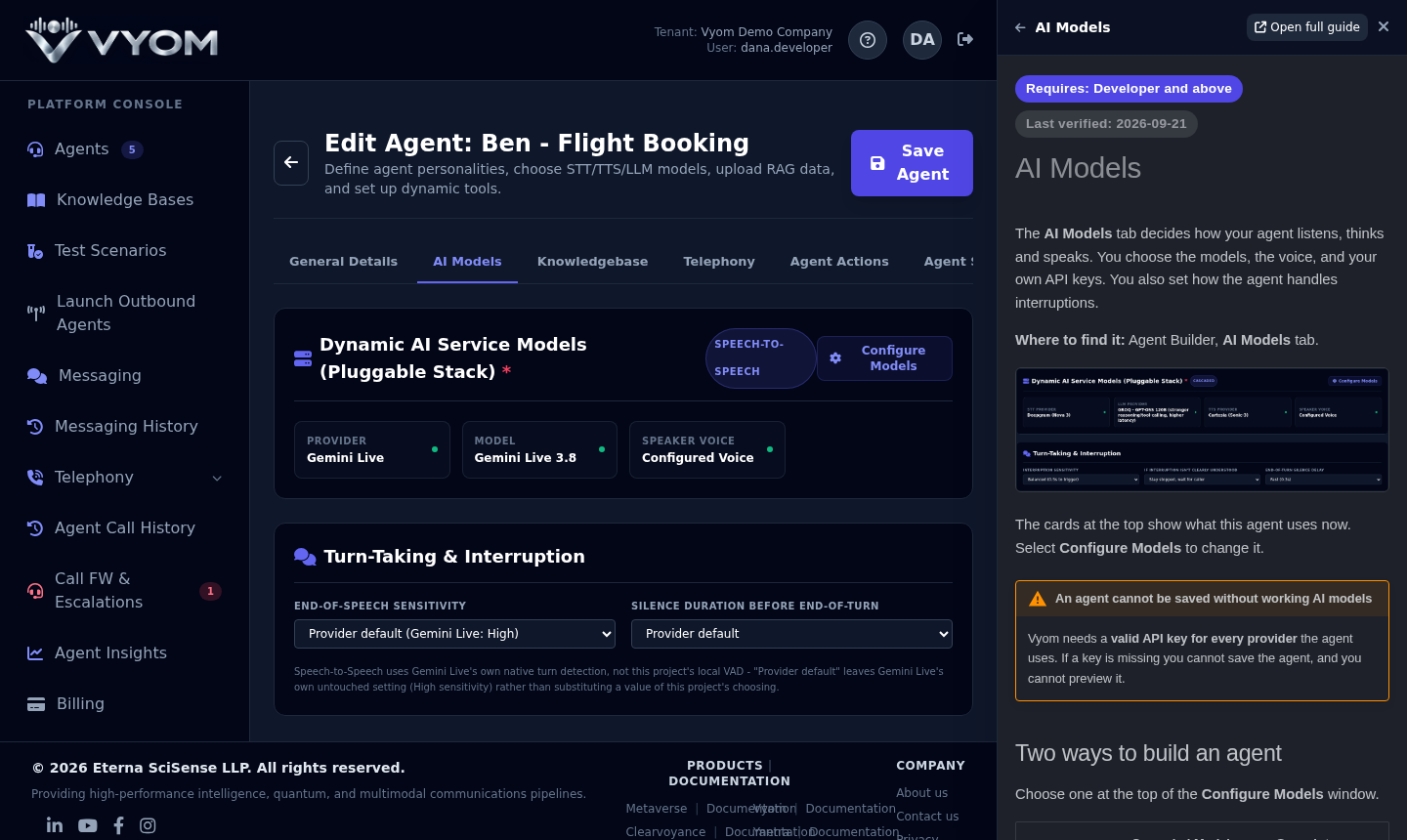
- It follows you. While the panel is open, moving to another page or tab in the console opens the matching help.
- Open full guide opens the whole guide in a new tab, with search and the full menu.
- Back goes to the page you looked at before.
- Drag the panel's left edge to make it wider or narrower.
- Select a screenshot in the panel to enlarge it.
- Close it with the x or the Esc key. A Help tab on the right edge opens it again. The console remembers whether it was open.
- The Vyom Documentation link at the bottom of the console also opens the panel.
What to do next
- Read Role Based Access Control to see what each role can do.
- If you are a Developer or Admin, build your first agent in Creating a New Agent.
- Add your team in Manage Users & Groups.
If something goes wrong
| Problem | What to do |
|---|---|
| The registration form will not submit | Check the message at the top of the form and any red hints. Confirm that every required field is filled and that the password rules are all green. |
| No verification email arrives | Check your spam folder, then contact support. |
| You can sign in but a menu item is missing | The menu depends on your role. Ask your Tenant Admin to change your role if you need it. |