Email
To let your agents send email, connect your mail server and write your templates.
Where to find it: Console menu, Messaging, Email tab. It has two sub-tabs: SMTP Configuration and Templates.
Vyom never hosts email itself. It connects to your mail server the way an email program does, and sends from your own address.
SMTP Configuration
SMTP is the standard way a program sends email through a mail server. You need your mail server's details from your IT team or email provider.
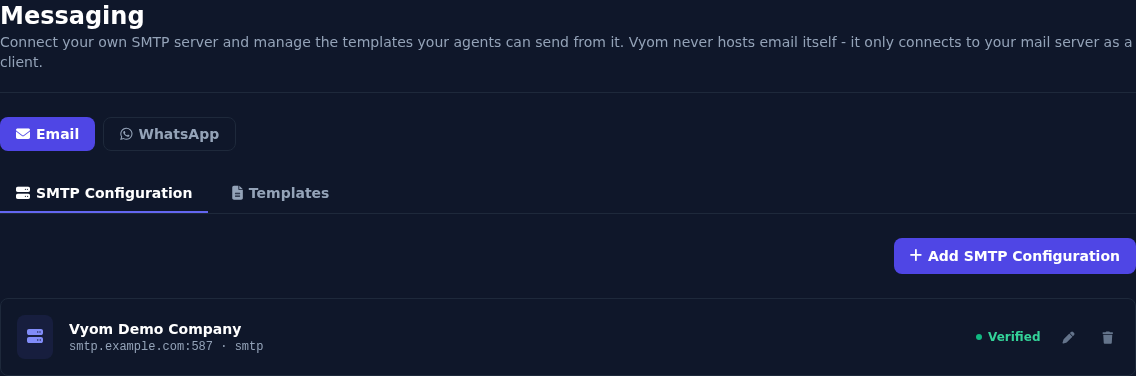
Add a configuration
- Open Messaging, Email, SMTP Configuration.
- Select Add SMTP Configuration.
- Fill in the form (below).
- Select Save & Verify.
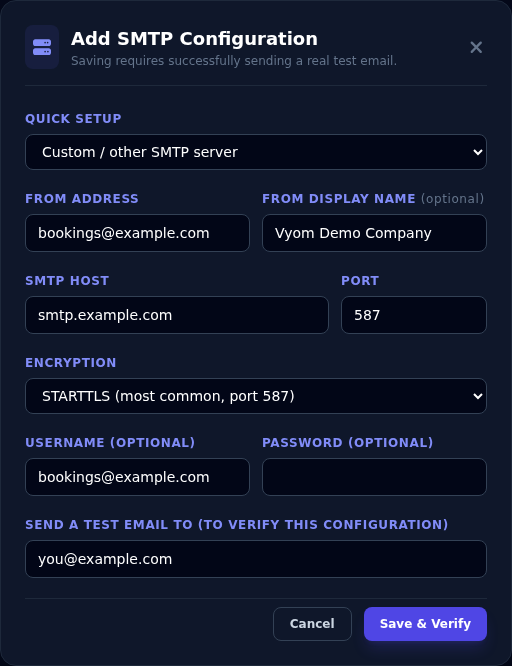
| Field | What to enter |
|---|---|
| Quick setup | Custom / other SMTP server, Gmail / Google Workspace, or Outlook.com / Office 365. The last two fill in the host, port and encryption for you. |
| From address | The address the email comes from, for example bookings@yourcompany.com. |
| From display name (optional) | The name customers see, for example "Vyom Demo Company". |
| SMTP host | Your mail server, for example smtp.yourcompany.com. |
| Port | Usually 587. |
| Encryption | STARTTLS (most common, port 587), TLS (port 465), or None. |
| Username and Password (optional) | The sign-in for the mail server. |
| Send a test email to | An address you can check. Vyom sends a real test email there. |
Vyom only saves a configuration that works
Save & Verify sends a real test email. If it fails, nothing is saved and you see the reason. When it works, the configuration shows Verified.
Gmail and Outlook
- Gmail / Google Workspace needs an App Password, not your normal Google password. Google rejects the normal password for sending. Create one at myaccount.google.com/apppasswords. Your Google account needs 2-Step Verification turned on.
- Outlook.com / Office 365 uses
smtp.office365.com, port 587. Your organisation's administrator may need to allow this kind of sign-in.
Change or delete a configuration
- The pencil opens it for editing. Passwords are never shown again, so leave Username and Password blank to keep the current ones. Saving sends a new test email.
- The bin deletes it, after you confirm.
Deleting stops email
Any agent that sends email with this configuration stops sending until you set it up again.
Templates
A template is an email with fixed wording and blanks for the details that change.
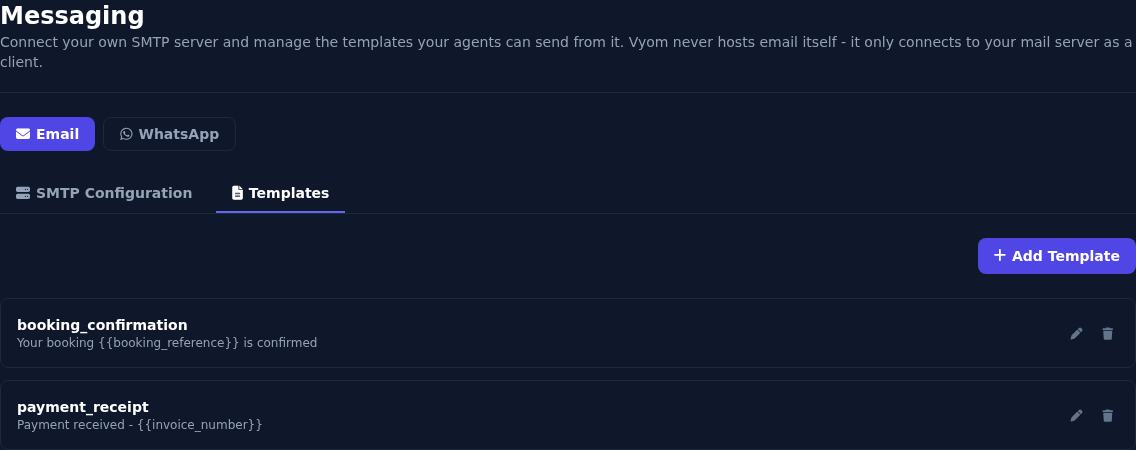
Add a template
- Open Messaging, Email, Templates.
- Select Add Template.
- Enter the Template name, the Subject and the Body.
- Select Save Template.
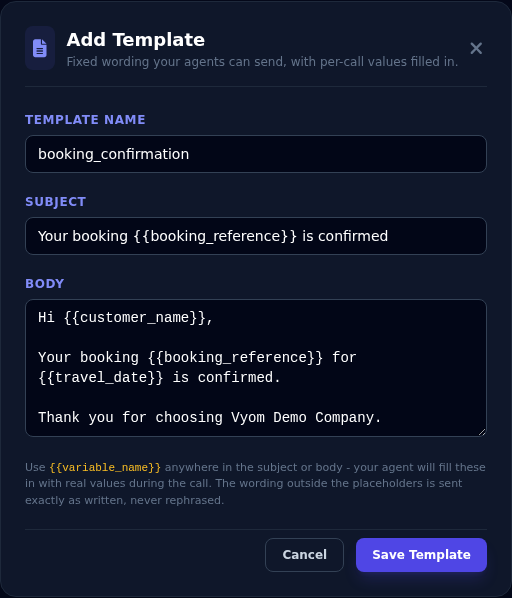
Put a placeholder in double curly brackets wherever a detail changes, in the subject or the body:
Subject: Your booking {{booking_reference}} is confirmed

Hi {{customer_name}},

Your booking {{booking_reference}} for {{travel_date}} is confirmed.

Thank you for choosing Vyom Demo Company.
- Use letters, numbers and underscores in a placeholder name:
{{customer_name}}. - The wording outside the placeholders is sent exactly as written. It is never reworded.
- During a call, the agent fills in each placeholder from the conversation.
The pencil edits a template, and the bin deletes it.
Give an agent the email action
A configuration and a template do nothing until an agent is told to use them. See Sending Email.
If something goes wrong
| What you see | What it means and what to do |
|---|---|
| "From address, SMTP host, and a test-verification address are all required." | Fill in those three fields. |
| "Could not add this configuration" | The test email failed. Read the reason. Check the host, port, encryption, username and password. |
| Gmail refuses the password | Use an App Password. See above. |
| The test email did not arrive | Check the spam folder and the address. |
| The configuration shows Not verified | Open it, and select Save Changes to send a new test email. |
The email arrived but shows {{name}} |
The agent did not supply that value. Tell the agent in its Agent Definition what to collect first. |