Sending Email
Your agent can send an email during a call, for example a booking confirmation or a link to a form. The email goes out from your own email account, so it comes from your own address.
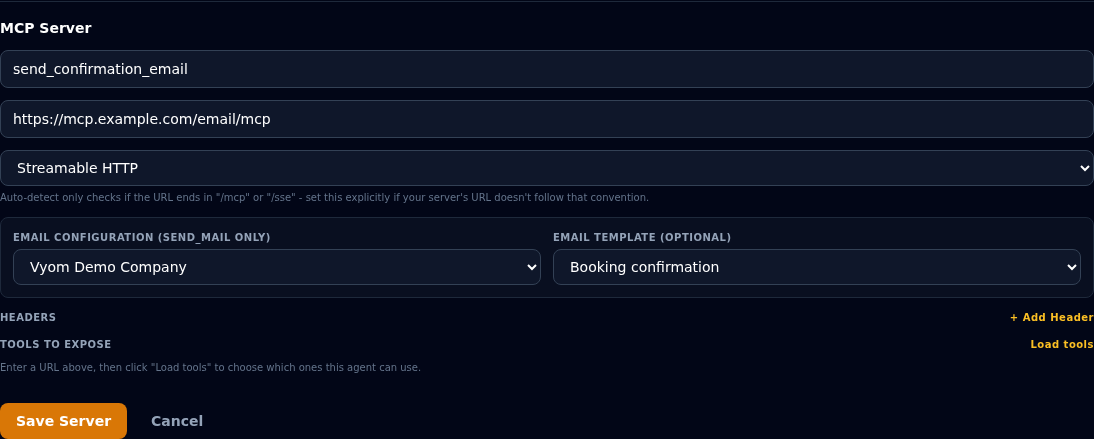
Where to find it: Agent Builder, Agent Actions tab, + MCP Server, then the Email Configuration and Email Template boxes.
Before you start
Set up email under Messaging first. See Email.
- Email configuration. Enter your mail server details and select Save & Verify. Vyom sends a test email, and saves the configuration only if it works.
- Email templates (optional, recommended). A template is a fixed email with placeholders, for example
Hello {{customer_name}}, your flight {{flight_number}} is confirmed.
You also need the address of Vyom's email server. This is the server the action connects to. Ask support at support@eternascisense.com for it.
Add the email action
- Open the Agent Actions tab and select + MCP Server.
- Enter a Server name, for example
send_confirmation_email, and the Server URL. - Under Email Configuration, choose your saved configuration.
- Under Email Template, choose a template, or leave it on None.
- Select Save Server, then Save Agent.
The card in the list shows an Email badge, or Email + Template.
With a template, or without
| With a template | Without a template | |
|---|---|---|
| Wording | Fixed. Only the placeholders change. | The agent writes the subject and the message. |
| The agent provides | The recipient's address and a value for each placeholder. | The recipient, the subject and the message. |
| Best for | Confirmations, receipts, anything customer-facing. | Rare cases. |
Use a template for anything customers read
A template makes sure the email says exactly what you approved. An agent that writes its own email can vary the wording, or get a detail wrong.
Tell the agent when to send it, and what it needs to collect. For example: "After a booking is confirmed, ask for the caller's email address, then send the confirmation email."
Check what was sent
Each email the agent sends is listed in Messaging History, with its status, so you can confirm that it went out. See Messaging History.
If something goes wrong
| What you see | What it means and what to do |
|---|---|
| No email configuration in the list | Add one under Messaging first, and save it with Save & Verify. |
| No templates in the list | Add one under Messaging, or leave the box on None. |
| The agent says the email could not be sent | Check the configuration still works (passwords change). Check the status in Messaging History. |
| The email did not arrive | Check the recipient's address. Ask the agent to repeat it back. Check the recipient's spam folder. |
The placeholders show as {{name}} in the email |
The agent did not supply a value. Tell the agent in the Agent Definition which details to collect first. |