WhatsApp
To let your agents send WhatsApp messages, connect your WhatsApp Business account and add your templates.
Where to find it: Console menu, Messaging, WhatsApp tab. It has two sub-tabs: Configuration and Templates.
Every message goes through Meta's own WhatsApp Cloud API, from your WhatsApp number. Vyom does not host WhatsApp itself.
Before you start
Some steps happen in Meta's tools, not in Vyom. Your Meta administrator does them, once:
- A Meta app with the WhatsApp product added.
- A WhatsApp Business Account (WABA) linked to that app.
- Business verification in Meta Business Settings. This can take a few days.
- An approved display name for your sending number.
- A phone number registered with the Cloud API. The number cannot also be in use as a normal WhatsApp or WhatsApp Business app number.
- A System User access token (a long-lasting one, not the short test token).
From these you collect the details Vyom asks for: WABA ID, Phone Number ID, Access Token, and App Secret.
Connect your account
- Open Messaging, WhatsApp, Configuration.
- Select Connect WhatsApp Account.
- Fill in the form (below).
- Select Connect.
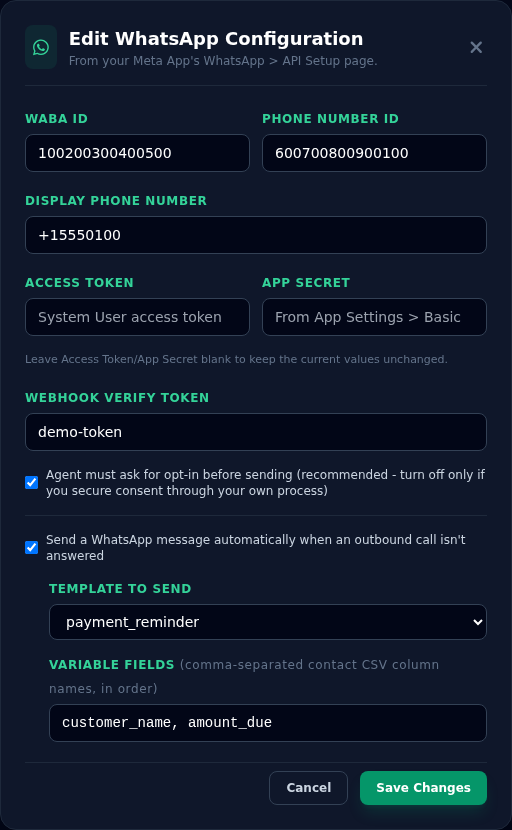
| Field | Where to find it |
|---|---|
| WABA ID | Your Meta app, WhatsApp > API Setup. |
| Phone Number ID | The same page. |
| Display Phone Number | Your WhatsApp number with the country code, for example +15550100. |
| Access Token | The System User token from Meta. Kept encrypted. |
| App Secret | Your Meta app, App Settings > Basic. Kept encrypted. |
| Webhook Verify Token | A word you make up. You enter the same word in Meta. See below. |
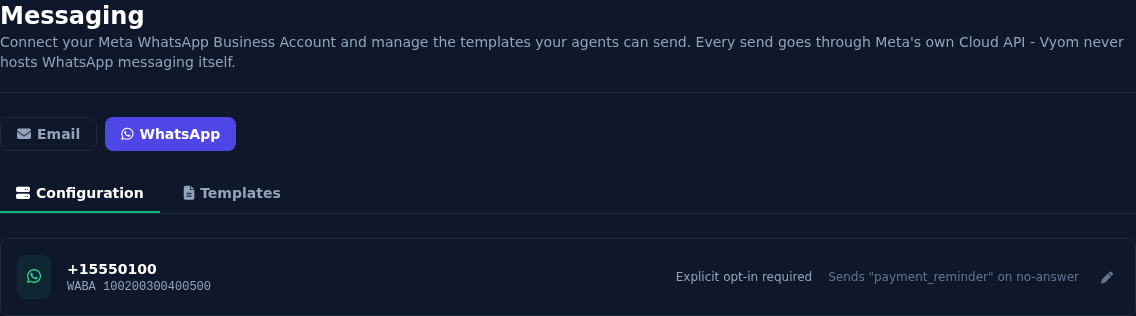
There is one WhatsApp account per organisation. After you connect it, the button is replaced by a card with a pencil to edit it. When editing, leave Access Token and App Secret blank to keep the current values.
The webhook
A webhook is how Meta tells Vyom that a message was delivered, or that a customer replied. In your Meta app, open WhatsApp > Configuration, and set:
| In Meta | Enter |
|---|---|
| Callback URL | https://vyom.eternascisense.com/webhooks/whatsapp |
| Verify token | The Webhook Verify Token you entered in Vyom |
Subscribe to messages. Without the webhook, Vyom cannot show Delivered, and it cannot see replies.
Vyom checks every webhook message's signature with your App Secret, so nobody else can post fake updates.
Asking for permission (opt-in)
Customers should agree before you message them. Choose how Vyom handles this:
| Setting | What it means |
|---|---|
| Agent must ask for opt-in before sending (recommended) | The agent has to ask, for example "Would you like updates on WhatsApp?", and record the answer. Vyom refuses to send to anyone who has not agreed. |
| Turned off | Turn it off only if you collect and keep consent yourself, outside Vyom. |
No-answer follow-up
Select Send a WhatsApp message automatically when an outbound call isn't answered to follow up with a contact who did not pick up.
| Field | What to enter |
|---|---|
| Template to send | One of your approved templates. |
| Variable fields | The column names from your contact list, comma-separated, in the same order as the template's placeholders. For example customer_name, amount_due. |
Good to know:
- It applies to outbound calls that were not answered or failed.
- If opt-in is required, it only works for a contact who already agreed on an earlier answered call. There is nobody to ask during a missed call. A contact who has never spoken to an agent gets no follow-up.
- The values come from your contact list. See Launching Outbound Agents.
Replies from customers
If a customer replies to one of your messages, Vyom sends one fixed reply: "This channel is for information only. Please contact customer support for any query." Replies are not passed to an agent.
Templates
WhatsApp only lets a business start a conversation with a pre-approved message called a template. You write the template in Vyom, Vyom sends it to Meta, and Meta approves or rejects it.
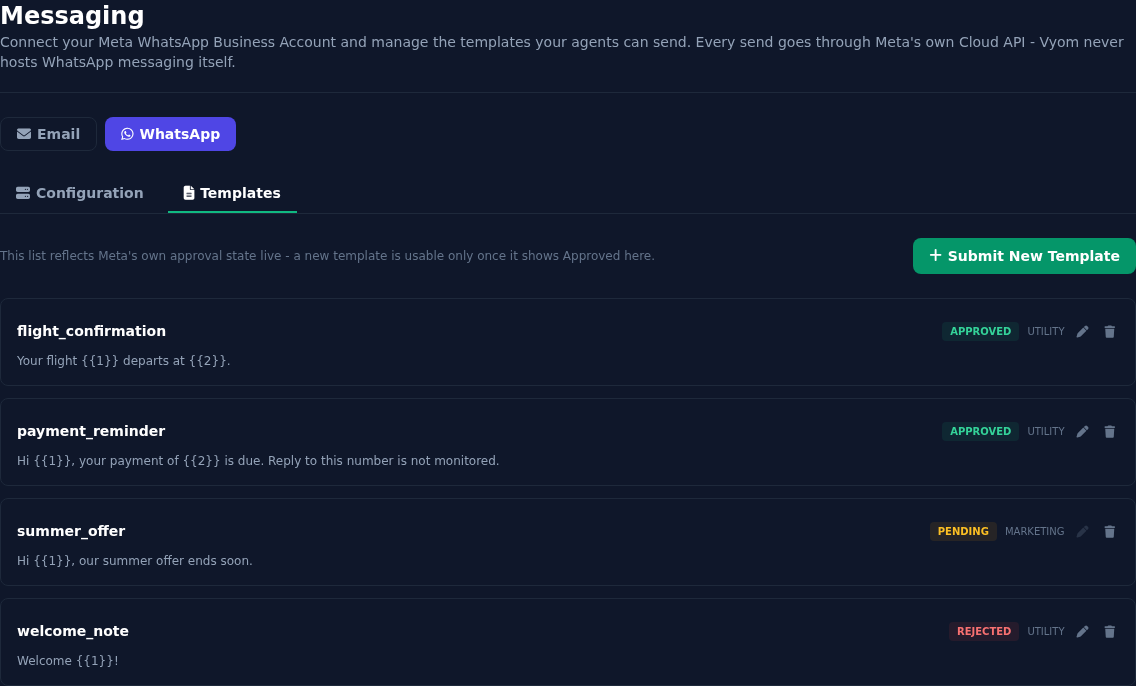
| Status | What it means |
|---|---|
| Approved | Ready to use. Only approved templates can be chosen in an agent's action. |
| Pending | Meta is reviewing it, usually within minutes to 24 hours. You cannot edit it while it is pending. |
| Rejected | Meta refused it. Edit it and submit again. |
The list shows Meta's status live.
Submit a template
- Open Messaging, WhatsApp, Templates.
- Select Submit New Template.
- Fill in the form.
- Select Submit for Review.
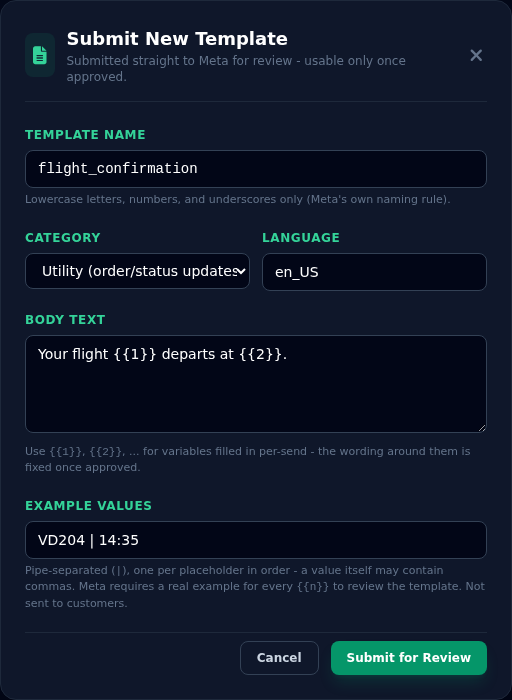
| Field | What to enter |
|---|---|
| Template Name | Lower-case letters, numbers and underscores only, for example flight_confirmation. |
| Category | Utility (order and status updates: use this for notifications), Marketing (promotions, with stricter limits), or Authentication (one-time codes only). |
| Language | A language code, for example en_US. |
| Body Text | The message. Use {{1}}, {{2}} and so on for the details that change. |
| Example Values | One real-looking example for each placeholder, separated by |, in order. For example VD204 | 14:35. Meta needs these to review the template. They are never sent to customers. |
Your flight {{1}} departs at {{2}}.
Keep templates plain and specific
Meta rejects vague, promotional or misleading wording, and placeholders that start or end the message. Choose Utility for updates about something the customer already asked for.
The pencil edits a template. The name, category and language cannot be changed. The bin deletes it.
Give an agent the WhatsApp action
A connected account and an approved template do nothing until an agent is told to use them. See WhatsApp Actions.
If something goes wrong
| What you see | What it means and what to do |
|---|---|
| "WABA ID, Phone Number ID, Display Phone Number, and Webhook Verify Token are all required." | Fill in these four. |
| "Access Token and App Secret are both required when connecting a new account." | Enter both the first time. |
| Meta says the webhook could not be verified | The verify token in Meta must match the one in Vyom, and the callback URL must be exactly as shown above. |
| A template stays Pending | Meta has not finished reviewing it. Wait, then refresh the tab. |
| A template is Rejected | Change the wording to be clearer and more specific, check the example values, and submit again. |
| Messages show Sent but never Delivered | The webhook is not set up, or the customer's phone is off. Check the webhook settings in Meta. |
| The message failed: "not opted in" | The customer has not agreed. Let the agent ask, or turn off the opt-in setting only if you manage consent yourself. |