Creating a New Agent
An agent is the voice worker that talks to your customers on the phone. In the Agent Builder you decide who the agent is, what it says, which AI models it uses, what it knows, and which phone numbers it uses.
Where to find it: Console menu, Agents, then Create New Agent.
Who can use it: Tenant Developer and Tenant Admin can create and edit agents. Viewers and Supervisors can only look at them.
The short version
- Select Create New Agent.
- On General Details, enter the Agent Name and write the Agent Definition. The Agent Definition tells the agent who it is and how to behave. Start from an Agent Template if you like.
- Add a Greeting and choose the Default Language.
- On AI Models, select Configure Models. Choose the models and enter your API keys. See AI Models.
- Select Save Agent. The agent is saved as a Draft.
- Come back to the agent to attach knowledge, check its phone numbers, and add actions.
- Try the agent on the Agent Preview tab. See Preview and Go Live.
- Set Agent Status to Active and save. The agent can now take calls.
Save early
Some tabs only work after the agent has been saved once. Knowledge Base, Telephony and the Group field ask you to save the agent first. Agent Preview saves your work for you.
The pages in this topic
The Agent Builder has eight tabs. Each has its own page here.
| Tab in the Agent Builder | What it is for | Page |
|---|---|---|
| General Details | Name, instructions, greeting, language, status, talk time, country and timezone | General Details |
| AI Models | The speech and language models, the voice, and turn-taking | AI Models |
| (language) | Agents that speak more than one language | Agents That Speak Several Languages |
| Knowledgebase | The documents the agent can search | Attaching Knowledge |
| Telephony and Outbound / Inbound Setup | Phone numbers, inbound and outbound settings | Telephony and Call Direction |
| Agent Actions | Tools the agent can use: web requests, other systems, keypad capture, WhatsApp, call transfer | Agent Actions |
| Agent Preview (and Agent Skills, coming soon) | The live test call | Preview and Go Live |
Agent status
Every agent is Draft, Active or Inactive.
| Status | What it means |
|---|---|
| Draft | Work in progress. The agent cannot take calls. This is the status of every new agent. |
| Active | The agent can take inbound calls and appears in the pickers on Launch Outbound Agents. |
| Inactive | Switched off. The agent keeps its settings but cannot take calls. |
Saving an agent never changes its status. A new agent stays a Draft until you choose Active and save.
Managing your agents
The Agents page shows every agent as a card, in three groups: Active, Draft and Inactive. Each card shows the agent's name, role, whether it is inbound or outbound, and the models it uses.
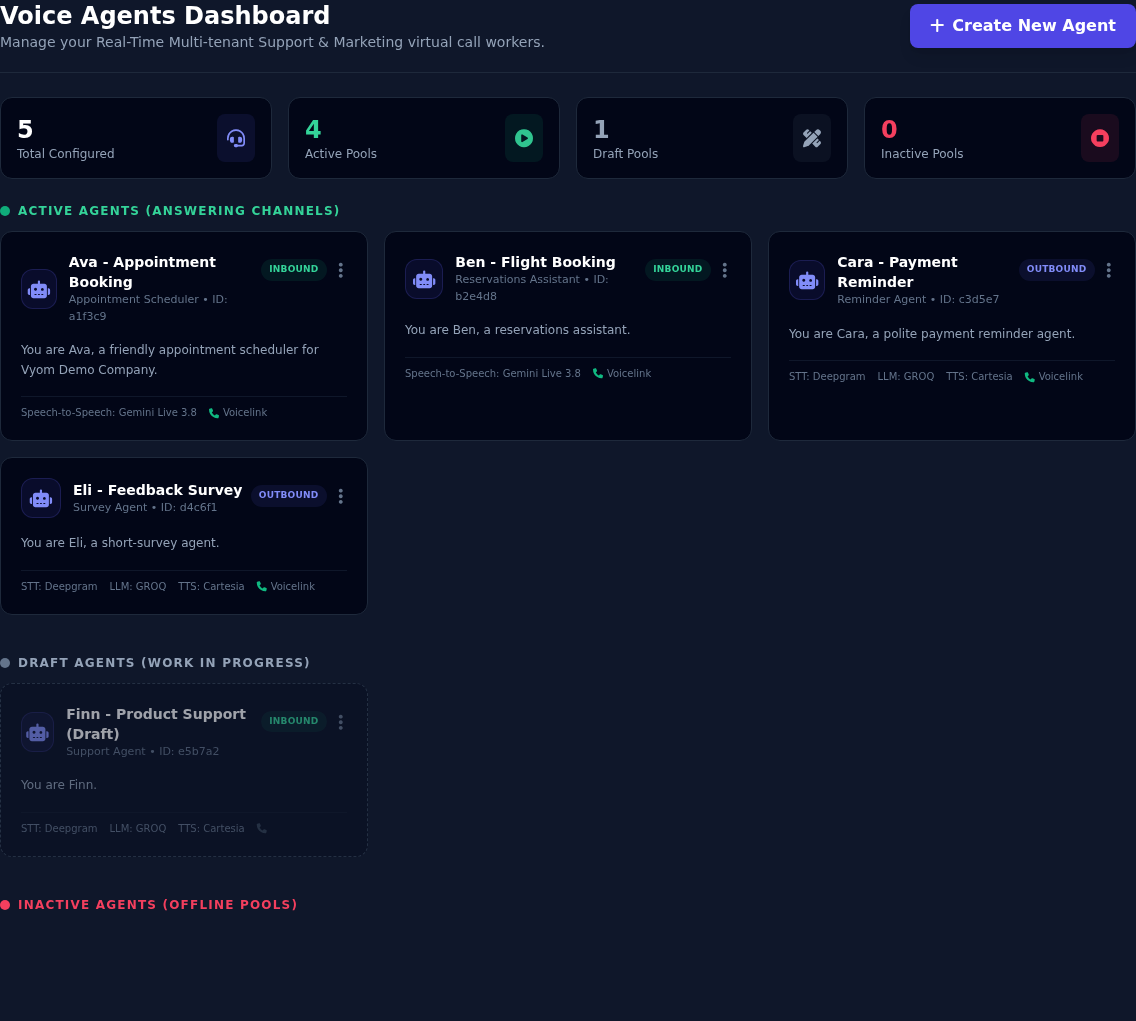
Select the three dots on a card to:
| Action | What it does |
|---|---|
| Edit Agent | Opens the agent in the Agent Builder. |
| Activate or Deactivate | Changes the status straight away. |
| Duplicate Agent | Makes a copy named " |
| Delete Agent | Deletes the agent for good. You are asked to confirm, and warned if the agent is Active. |
Deleting cannot be undone
If an agent is Active it may be talking to a customer right now. Deactivate it first, and delete it only when you are sure.
Ideas to start from
| Agent | Direction | What it does |
|---|---|---|
| Appointment booking | Inbound | Answers calls, offers free slots, books the appointment, and sends a confirmation. |
| Payment reminder | Outbound | Calls customers with a due invoice, reminds them, and offers a payment plan. |
| Feedback survey | Outbound | Asks a few short questions and records the answers. |
| Product support | Inbound | Answers questions from your documents and passes hard cases to a person. |
The Agent Templates button on the General Details tab has ready-made instructions for several of these.
If something goes wrong
| What you see | What it means and what to do |
|---|---|
| "AI Model configuration is required before this agent can be saved." | Open AI Models, select Configure Models, and enter a working API key for every provider you chose. See AI Models. |
| "Please enter an Agent Name." or "Please write the AGENT DEFINITION instructions." | Both fields are required. |
| "Save the agent first, then attach documents." | Select Save Agent, then open the tab again. |
| "This agent is not in a group you have access to." | The agent is in a group you are not in. Ask a Tenant Admin. See Manage Users & Groups. |
| The agent does not answer calls | Check that Agent Status is Active and that a phone number points to it. See Telephony and Call Direction. |