Launching Outbound Agents
An outbound agent makes phone calls to a list of people. You can launch it right now, on a schedule, or automatically when something happens in another system (an event).
Where to find it: Console menu, Launch Outbound Agents.
Who can use it: any role. Because launching places real calls to real people, give the Viewer role with care.
Before you launch
You need three things.
- An active agent with outbound dialing turned on. In the Agent Builder, open the agent's Outbound / Inbound Setup tab and set Outbound Campaigns to Enabled. The agent's status must be Active. Only such agents appear in the agent pickers on this page.
- A contact list uploaded for that agent (next section).
- A phone connection for outbound calls. This is set up under Telephony. See Configuring and Managing Telephony.
Prepare the contact list
Each outbound agent has one contact list. You upload it in the Agent Builder.
- Open the agent in the Agent Builder and go to Outbound / Inbound Setup.
- Under Upload Customer Contact List, choose a
.csvor.xlsxfile. - Vyom shows the contacts and their status.
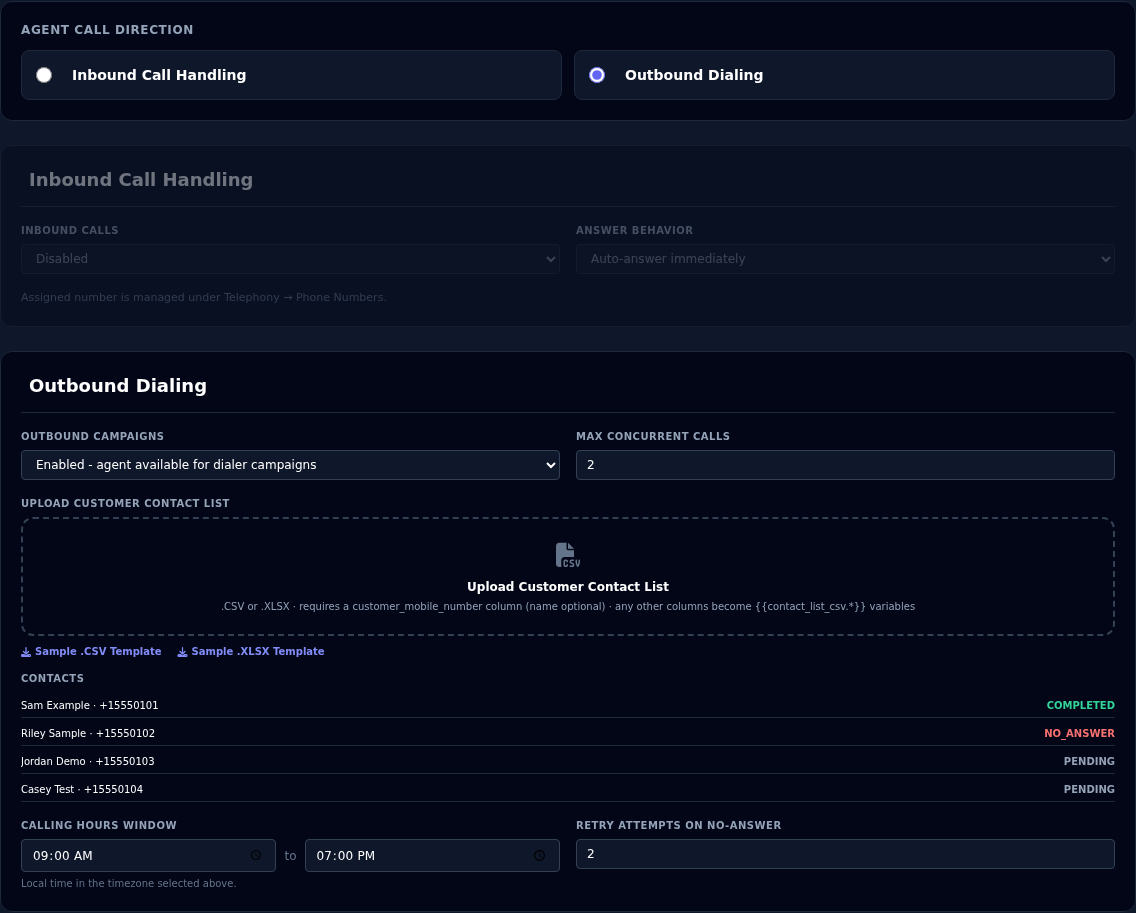
What the file needs
| Column | Rule |
|---|---|
| Phone number | Required. Use the header customer_mobile_number. These also work: phone_number, phone, mobile_number, mobile, mobile_no, phone_no, contact_number. Include the country code, for example +919876543210. |
| Name | Optional. Use customer_name, or name, full_name or contact_name. |
| Any other column | Kept with the contact and available in your agent's greeting and instructions as {{contact_list_csv.<column>}}, for example {{contact_list_csv.reference_id}}. |
A row with no phone number is skipped. Start from the Sample .CSV Template or Sample .XLSX Template links on the page.
Excel can shorten phone numbers
If a CSV file was saved from Excel with the phone column formatted as a number, long numbers turn into something like 9.19867E+11 and the real digits are lost. Vyom then refuses the whole file, names the rows affected, and imports nothing, so no one is dialled at a wrong number.
To fix it: in Excel, format the phone column as Text, type the numbers again (or paste them back from the original source), and save. Or upload the .xlsx file itself, which keeps numbers intact.
Uploading a new list replaces the old one
A new upload replaces the whole contact list for that agent. It is not added to the old list.
Contact status
| Status | Meaning |
|---|---|
| Pending | Not called yet. |
| Calling | A call is in progress. |
| Completed | The call finished. |
| No answer | The call was not answered. |
| Failed | The call could not be made. |
| Not called: no credit | Skipped because your credits were too low. Called on the next run once you've topped up. See When calls stop. |
Launch as a Schedule
Open the Launch as a Schedule tab.
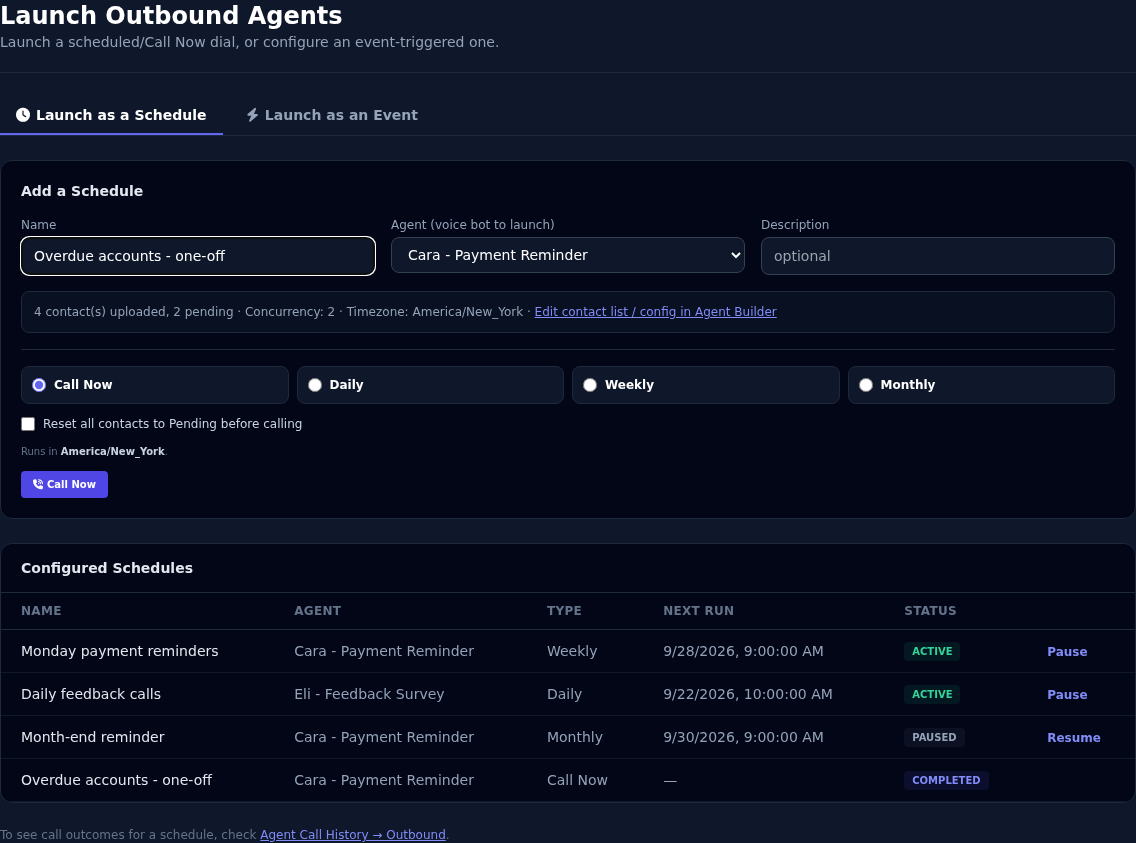
Call Now
- Enter a Name, for example
Overdue accounts - one-off. - Choose the Agent. A summary line shows how many contacts answered, how many were not reached, and how many have not been called yet.
- Leave Call Now selected.
- Under Who to call, choose one option. Each shows how many contacts it will call:
- Not yet called: only contacts this agent has not called yet.
- Not reached yet: contacts not yet called, plus anyone who did not pick up last time. Everyone who answered is skipped.
- Everyone: the whole contact list again, including people who already answered.
- Select Call Now.
Vyom starts calling straight away.
For example, you call 100 contacts and 50 answer. To call only the other 50, run Call Now again with Not reached yet.
A call answered by voicemail or an automated system counts as answered.
A message confirms the schedule ID. The contact statuses update as calls happen.
Daily, Weekly or Monthly
- Enter a Name and choose the Agent.
- Choose Daily, Weekly or Monthly.
- Choose the Call Time. For Weekly, also choose the Day of Week. For Monthly, also choose the Day of Month.
- Select Create Schedule.
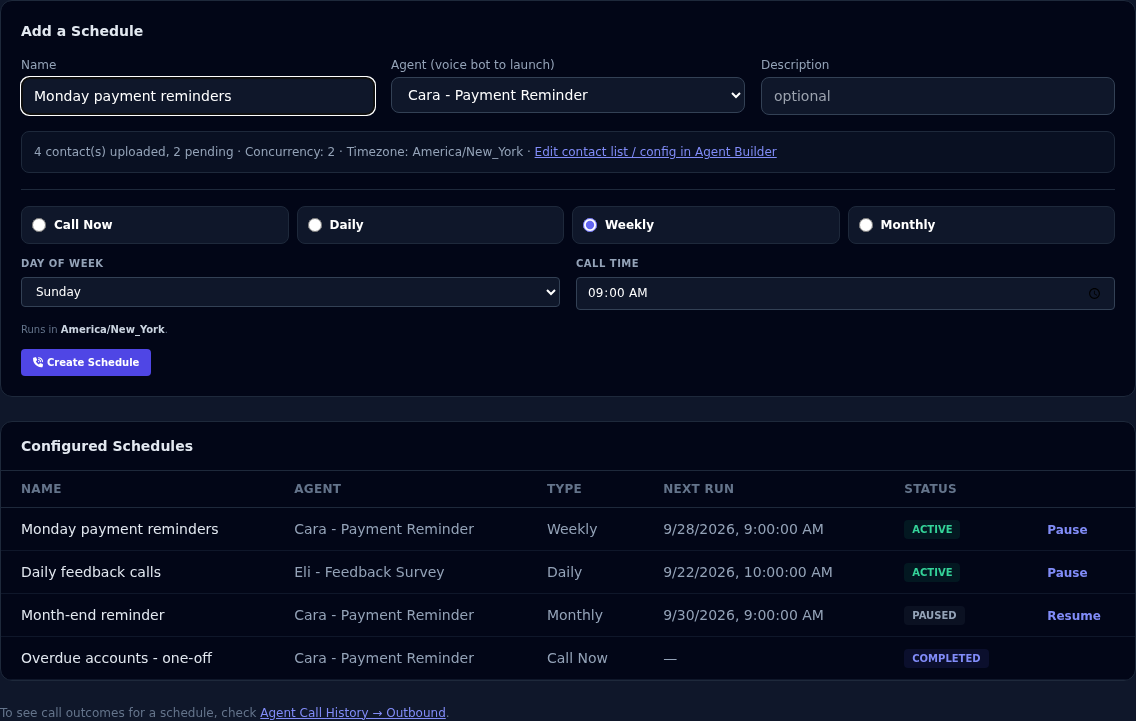
- The time is in the agent's own timezone, shown as "Runs in". Set the timezone in the agent's General tab, next to Country.
- Every run calls all contacts. Before each Daily, Weekly or Monthly run, Vyom sets every contact back to Pending, then calls them all.
Manage your schedules
Configured Schedules lists every schedule.
| Column | What it shows |
|---|---|
| Name, Agent, Type | What you created. |
| Next Run | When it runs next. |
| Status | Active, Paused or Completed. |
- Select Pause to stop a Daily, Weekly or Monthly schedule from running, and Resume to start it again.
- A Call Now schedule shows Completed once it has run. It has no next run and cannot be paused.
Launch as an Event
An event lets another system, such as your billing system, start calls automatically. Open the Launch as an Event tab.
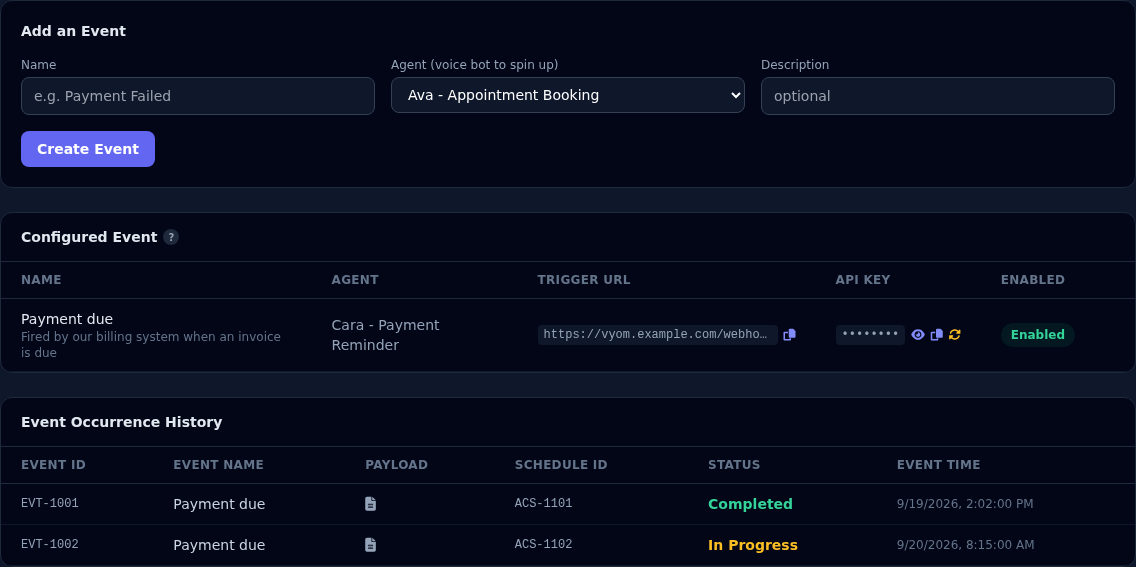
Create an event
- Under Add an Event, enter a Name, for example
Payment due. - Choose the Agent to start.
- Add a Description if you like.
- Select Create Event.
Each event gets its own Trigger URL and API Key. Give both to the system that should start the calls. Use the icons next to them to copy, reveal, or regenerate the key.
Regenerating the API key
A new key stops the old key working immediately. Update the other system straight away.
Start calls from your other system
Your system sends a POST request to the Trigger URL, with the API key in the header X-Event-Api-Key.
For one person:
{ "phone_number": "+15550101" }
For several people at once:
{
  "contacts": [
    { "customer_name": "Sam Example", "customer_mobile_number": "+15550101", "invoice": "INV-204" },
    { "customer_name": "Riley Sample", "customer_mobile_number": "+15550102" }
  ],
  "concurrency": 2
}
- Send either
phone_numberorcontacts, not both. - Each contact uses the same column names as the contact list, so extra fields such as
invoiceare available to your agent as{{contact_list_csv.invoice}}. - concurrency is optional. It sets how many calls run at once for this trigger only. Without it, the agent's own Max Concurrent Calls applies.
- An event trigger calls only the contacts in that request, not the agent's uploaded list.
An event can be switched off with its Enabled button. A disabled event refuses new triggers.
Event Occurrence History
Every trigger received is listed with its Event ID, Event Name, Payload (select the document icon), Schedule ID, Status and time. Status shows Completed, In Progress, Failed or Did Not Run.
Settings that affect launching
Set these in the Agent Builder, on the agent's Outbound / Inbound Setup tab.
| Setting | What it does |
|---|---|
| Outbound Campaigns | Must be Enabled for the agent to appear on this page. |
| Max Concurrent Calls | How many calls are made at the same time. Start with 1. Your phone provider may limit how many calls can run at once. |
| Upload Customer Contact List | The people to call. |
The Country and Timezone are on the General tab. Schedules use the agent's timezone.
Calling hours and retries are not applied yet
The Calling Hours Window and Retry Attempts on No-Answer settings are saved with the agent, but Vyom does not yet use them to limit when calls are made or to try again. Pick your schedule times with your customers' hours in mind, and launch again to retry contacts who did not answer.
See what happened
Call outcomes are in Agent Call History, on the Outbound tab. Each launch is a row, and opening it lists the people called. See Agent Call History.
If something goes wrong
| What you see | What it means and what to do |
|---|---|
| The agent is not in the picker | It must be Active with Outbound Campaigns set to Enabled. Change that in the Agent Builder. |
| "No active agents with Outbound Dialing enabled" | No agent meets both conditions yet. |
| The summary says 0 contacts | Upload a contact list for that agent. |
| Call Now starts but nothing is called | Everyone has already been called. Choose Not reached yet or Everyone under Who to call. |
| Your upload is rejected: "need a phone number column" | The file has no recognised phone column. Use the header customer_mobile_number. |
| "Failed to schedule" with a permission message | Your session may have expired. Sign in again and retry. |
| An event trigger returns 401 | The API key is wrong or was regenerated. Copy the current key from the Configured Event table. |
| An event trigger returns 403 | The event is disabled. Turn it on with Enabled. |
| An event trigger returns 400 | Send phone_number or contacts (not both), and check each contact has a phone number. |
| A scheduled run shows Did Not Run | The agent's outbound dialing was off when the schedule ran. |