HTTP Tools
An HTTP Tool lets your agent call a web service of yours during a call. Use it to look up a booking, check an order, create a callback request, or update a record.
Where to find it: Agent Builder, Agent Actions tab, + HTTP Tool.
Before you start
You need:
- The web address (URL) of the service, and whether it uses GET, POST or another method.
- The names of the values it expects, for example
reference. - An API key or token, if the service needs one.
If you do not have these, ask the person who looks after that system.
Add an HTTP Tool
- Open the Agent Actions tab and select + HTTP Tool.
- Fill in the form (below).
- Select Save Tool, then Save Agent.
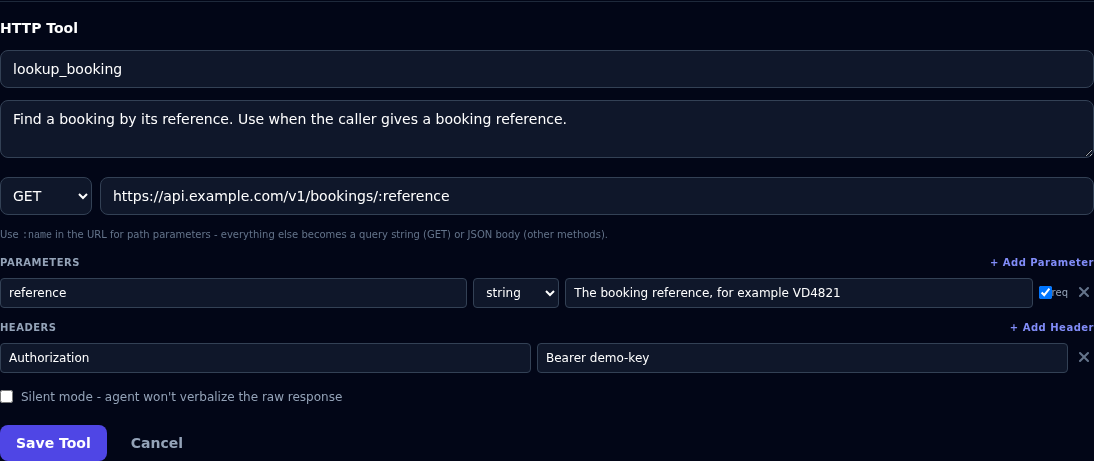
| Field | What to enter |
|---|---|
| Tool name (required) | A short name, for example lookup_booking. |
| Description | When the agent should use it, for example "Find a booking by its reference. Use when the caller gives a booking reference." |
| Method | GET, POST, PUT, PATCH or DELETE. |
| URL (required) | The address. Put a name after a colon where a value goes in the path: https://api.example.com/v1/bookings/:reference. |
| Parameters | The values the agent must collect from the caller. See below. |
| Headers | Extra information sent with every request, usually for sign-in. See below. |
| Silent mode | Tick this if the agent should not talk about the reply. See below. |
Parameters
Each parameter is one value the agent works out from the conversation and sends to your service.
Select + Add Parameter and fill in:
| Column | What to enter |
|---|---|
| name | The name your service expects, for example reference. |
| type | string (text), number or boolean (yes or no). |
| description | What it is, with an example: "The booking reference, for example VD4821". This is how the agent knows what to ask for. |
| req | Tick if the agent must have this value before it calls the service. |
How the values are sent
| Where the value goes | What happens |
|---|---|
The name appears in the URL after a colon (:reference) |
The value is put into the address at that spot. |
| The method is GET | The other values are added to the address as a query, for example ?date=2026-10-01. |
| The method is POST, PUT, PATCH or DELETE | The other values are sent as a JSON body. |
Headers
Select + Add Header and enter a name and a value. The most common use is signing in:
| Header name | Value |
|---|---|
Authorization |
Bearer your-api-key |
Anyone who can open the agent can see header values
Use an API key made only for this agent, with the fewest rights possible, so it can be replaced quickly if needed.
Silent mode
- Off (default): the agent receives your service's reply and can use it in what it says. Use this for lookups.
- On: the agent only learns that the call was made. It never sees the reply. Use this for "fire and forget" jobs such as logging a note.
What the agent sees back
- The agent gets the first 2,000 characters of the reply. Make your service return short, focused answers. A long reply is cut off.
- The agent waits up to 10 seconds for a reply. After that, it is told the action failed and carries on.
- A reply such as "not found" is still passed to the agent, so it can ask the caller to repeat the reference.
Example
Look up a booking
| Field | Value |
|---|---|
| Tool name | lookup_booking |
| Description | Find a booking by its reference. Use when the caller gives a booking reference. |
| Method and URL | GET https://api.example.com/v1/bookings/:reference |
| Parameter | reference, string, required: The booking reference, for example VD4821 |
| Header | Authorization: Bearer … |
Create a callback request
| Field | Value |
|---|---|
| Tool name | request_callback |
| Description | Book a call back for the caller. Use when they ask to be called later. Ask for the best time first. |
| Method and URL | POST https://api.example.com/v1/callbacks |
| Parameters | preferred_time (string, required), reason (string) |
| Silent mode | On |
If something goes wrong
| What you see | What it means and what to do |
|---|---|
| "Tool name and URL are required." | Fill in both. |
| "URL is not allowed (internal/private target)" | The address is inside a private network. Use a public address. |
| The agent says "the action failed" | Your service did not answer within 10 seconds, or could not be reached. Test the address in a browser or a tool such as curl. |
| Your service returns 401 or 403 | The header is wrong or the key has expired. Check Headers. |
| Your service returns 404 | The value in the path is wrong. Check the URL, and ask in Preview what value the agent used. |
| The agent never calls the tool | Improve the description and mention the tool by name in the Agent Definition. |
| The agent reads out a long, messy reply | Make the service return only what the agent needs, or turn on Silent mode if the agent should not use the reply. |
Need help or clarification?
Email support@eternascisense.com,
or call the support number shown on
vyom.eternascisense.com.