MCP Servers
MCP (Model Context Protocol) is a standard way for an AI agent to connect to another system and use its tools. If a system offers an MCP server, you can connect it to your agent with one address, and the agent can use everything the server offers: search, book, cancel, look up, and so on.
Where to find it: Agent Builder, Agent Actions tab, + MCP Server.
Use an HTTP Tool instead if you only need to call one web address. See HTTP Tools. Use an MCP server when the system already offers one, or when you need several related tools from the same system.
Before you start
You need the address of the MCP server, for example https://mcp.example.com/mcp, and a key or token if it needs one. You get both from whoever runs that system.
Vyom connects to remote servers over the web only. It cannot start programs on a computer.
Add an MCP Server
- Open the Agent Actions tab and select + MCP Server.
- Fill in the form (below).
- Select Load tools and choose which tools the agent may use.
- Select Save Server, then Save Agent.
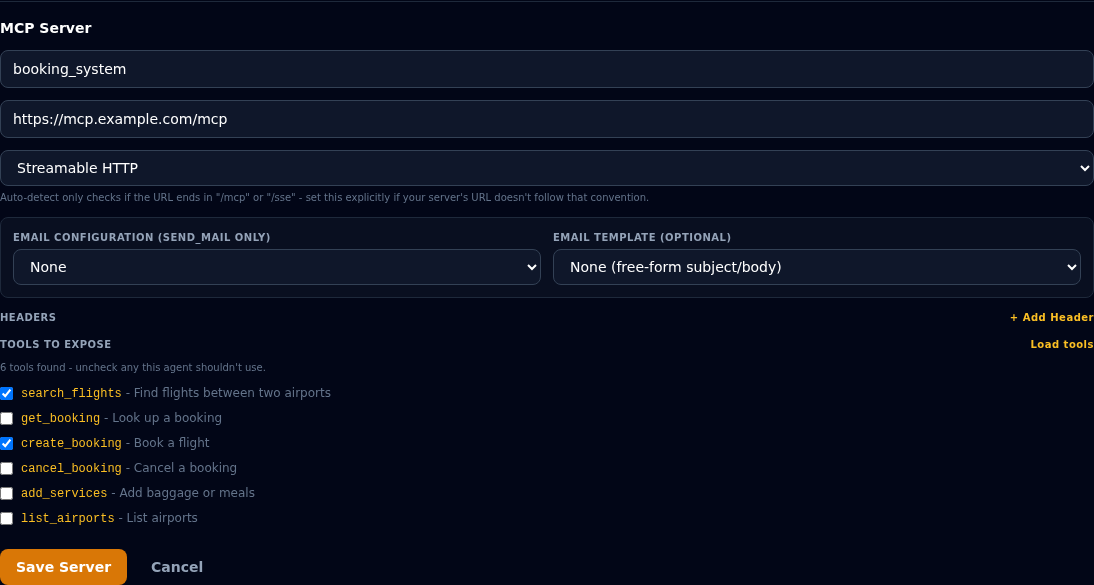
| Field | What to enter |
|---|---|
| Server name (required) | A short name, for example booking_system. |
| Server URL (required) | The server's address. |
| Transport | Auto-detect works only if the address ends in /mcp or /sse. If it does not, choose Streamable HTTP or SSE yourself. Ask the server's owner which one it uses. |
| Email Configuration and Email Template | Only for sending email. Leave both on None for any other server. See Sending Email. |
| Headers | Extra information sent with each request, usually for signing in. For example Authorization: Bearer your-key. |
| Tools to expose | Which of the server's tools this agent may use. See below. |
Anyone who can open the agent can see header values
Use a key made only for this agent, with the fewest rights possible.
Choose which tools to expose
A server may offer many tools. Vyom describes every tool you expose to the agent on every turn of the call. So a long list makes the agent slower and less accurate, and some AI providers reject a request that is too large.
- Enter the address, then select Load tools. Vyom connects to the server and lists what it offers.
- Untick the tools this agent does not need.
- Save. The card shows how many are on, for example 2 of 6 tools enabled.
Good to know:
- Leave everything ticked to expose every tool the server offers.
- The list is fetched live each time you select Load tools. It is never remembered, so it always shows what the server offers now.
- If the server later adds a tool, a filtered agent does not get it automatically. Open the action, select Load tools, and tick it.
- Untick tools that change data (for example
cancel_booking) unless the agent really should have them.
What the agent sees back
The agent receives each tool's answer as it comes from the server. If a tool returns nothing, the agent is told that it completed without a result.
If something goes wrong
| What you see | What it means and what to do |
|---|---|
| "Server name and URL are required." | Fill in both. |
| "Enter a URL above first." | Type the address before selecting Load tools. |
| "Could not connect to MCP server" | The address is wrong, the server is down, or the sign-in header is wrong. Check the address and the transport. |
| "URL is not allowed (internal/private target)" | The address is inside a private network. Use a public address. |
| The list shows no tools | The server offers none, or sign-in failed. Check Headers. |
| The agent does not use a tool | Check the tool is ticked, and mention what to do in the Agent Definition. |
| The agent is slow, or errors about size | Expose fewer tools. |